Admin v5 & Dealer Portal Release
Table of Contents
- Summary
- Dealer Portal
- Admin v5
- Locations
- Plates
- Plate Detail Page
- Workflows
- Certifications
- Certification Detail Page
- Confirmations
- Customers
- Drivers
- Driver Pipeline
- Event Logs
- Hang Tags
- Move Details
- Region Detail
- Settings
Summary
This release brings CSV import for bulk driver onboarding to the dealer portal, plus improved link behavior so you can right-click to open in a new tab. The admin portal gets a major refresh with a cleaner look and updated pages for locations, plates, certifications, drivers, and more. All of these include the same link improvements.
Dealer Portal
CSV Import for Bulk Driver Onboarding
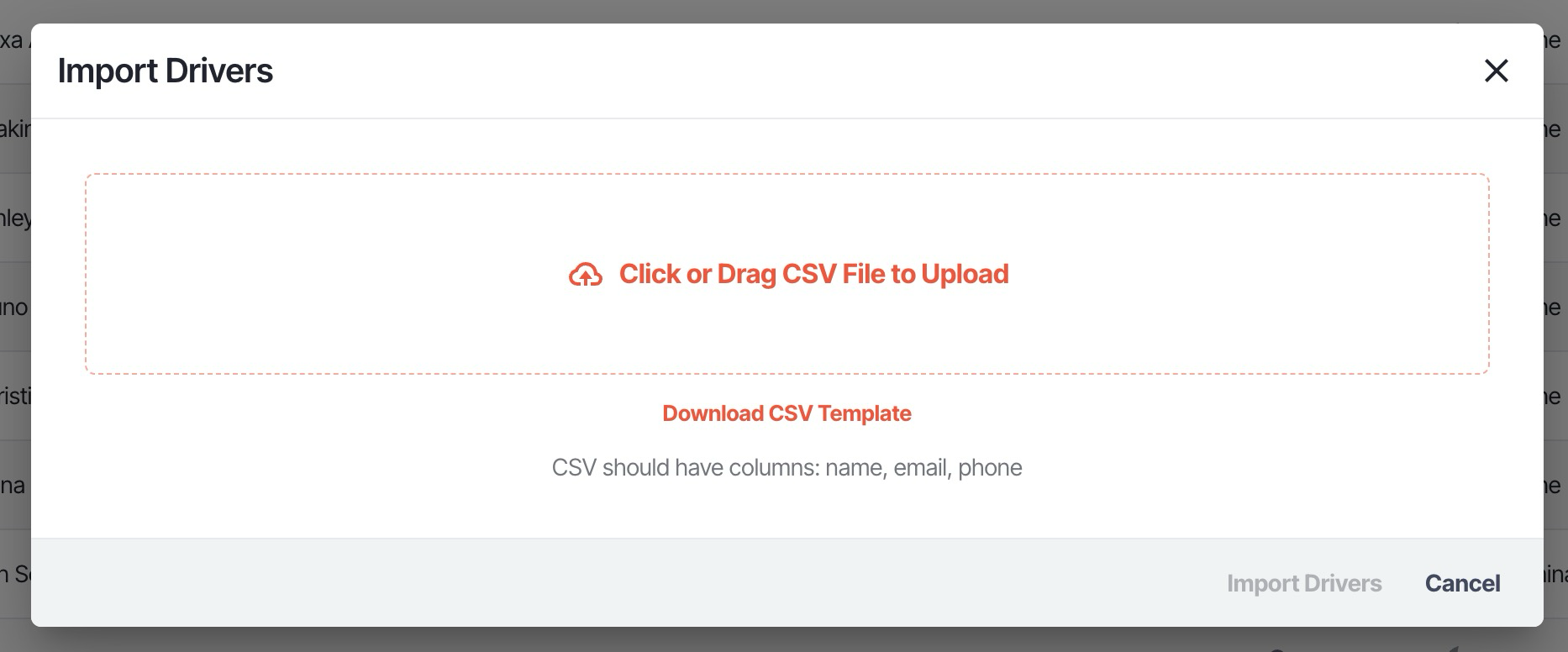
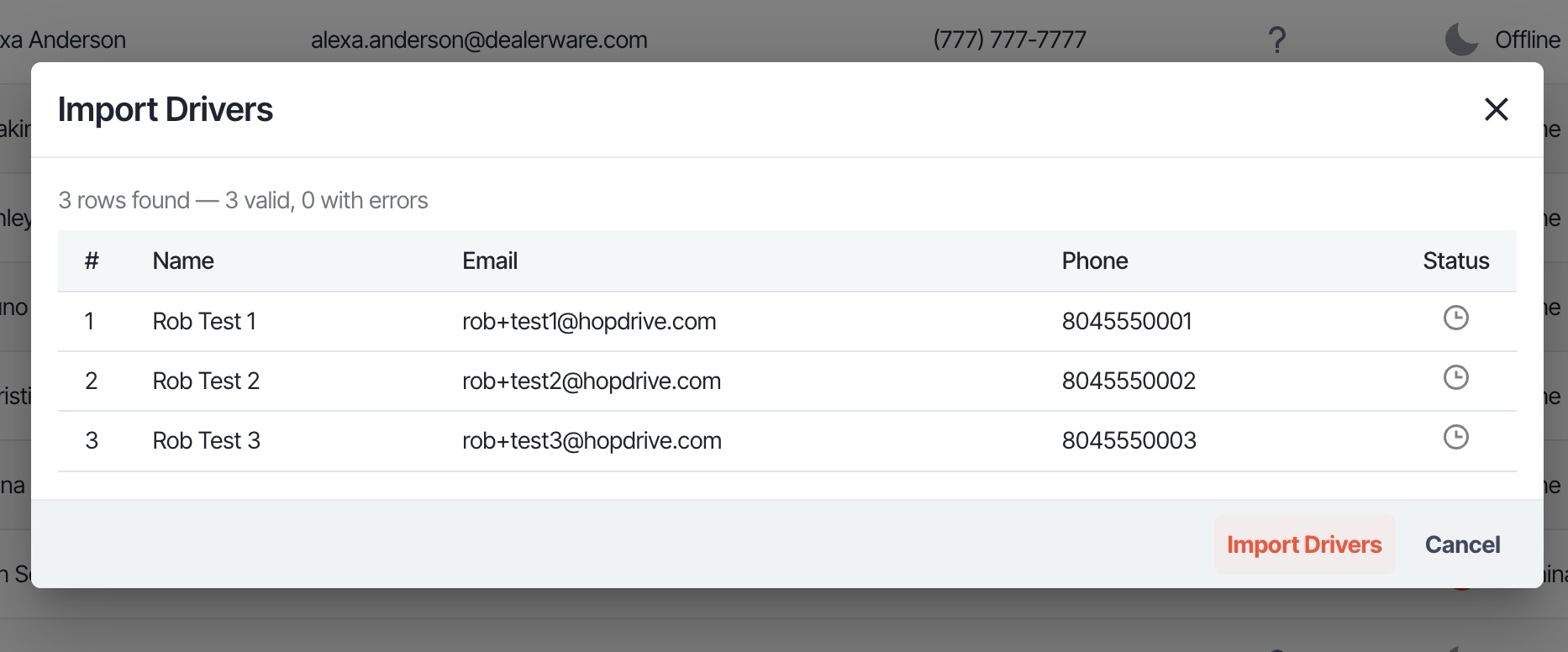
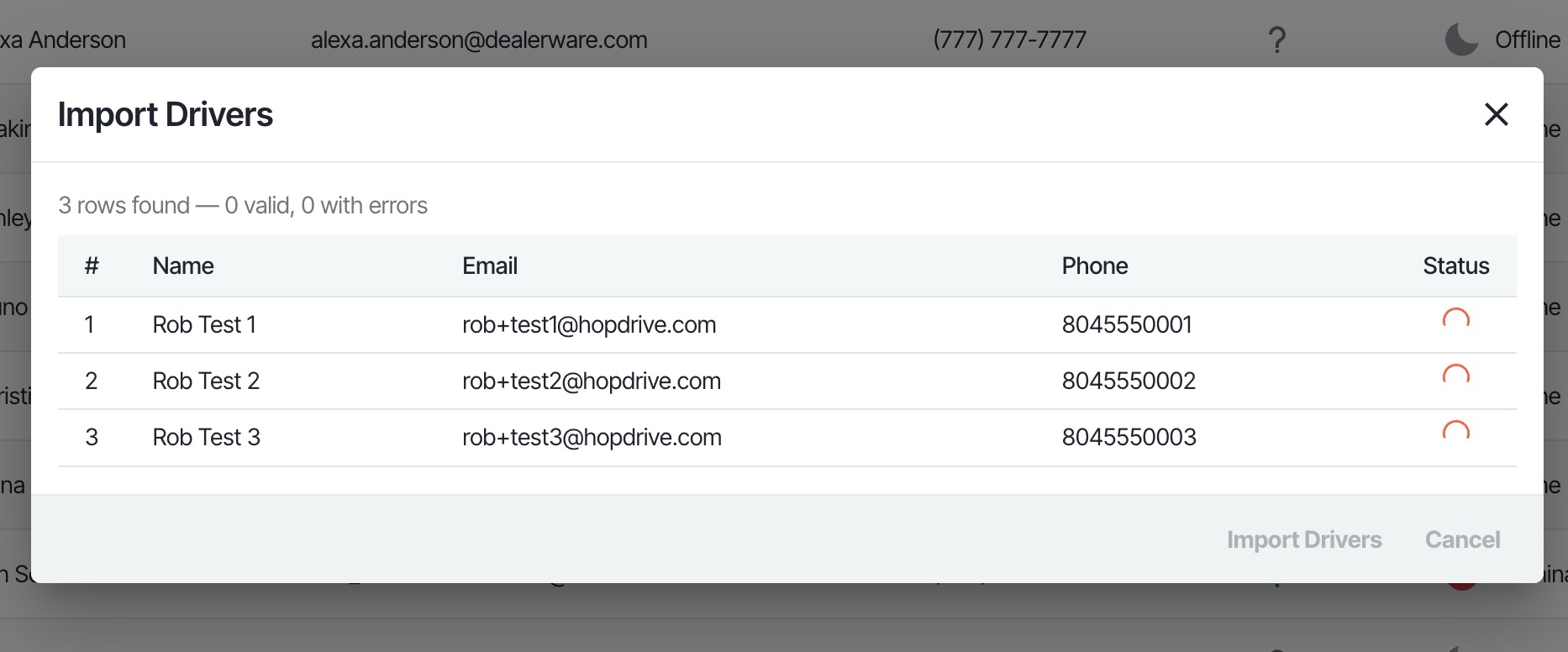
Add multiple drivers at once with the new CSV import. Drag and drop a CSV file into the modal, preview all rows before importing, and see validation errors highlighted for any bad data. When you click Import, each row is processed and its status updates in real time. A downloadable template includes the required columns: name, email, and phone. Use the Import Drivers button in the Drivers page header to get started.
Drivers Table Scrolling
The drivers table now scrolls more smoothly: only the data rows scroll while column headers and pagination stay fixed, so you can always see what you're looking at.
Open in New Tab
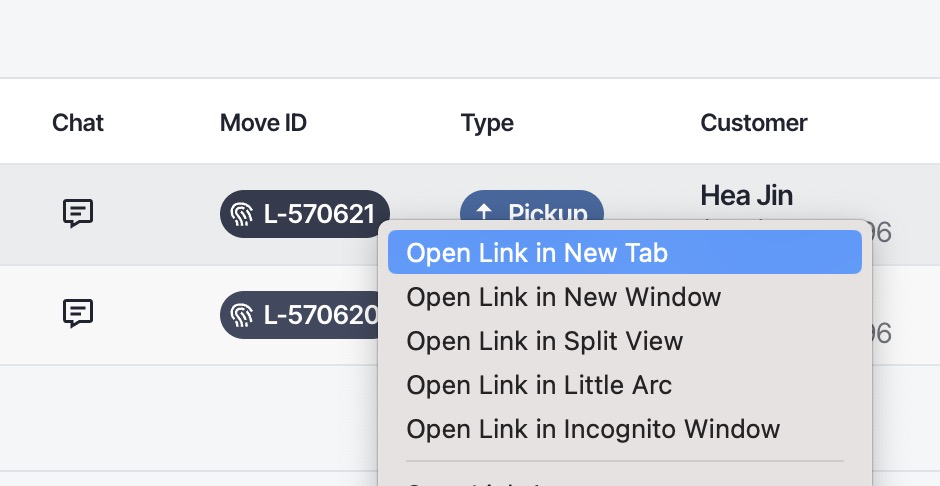
Sidebar links and move tiles now work like normal web links. Right-click any nav item or move tile and choose "Open in new tab" to keep your current page open while you explore. Ctrl+click (Cmd+click on Mac) or middle-click with your mouse wheel does the same thing. No more losing your place when you want to compare moves or open something for reference.
Admin v5
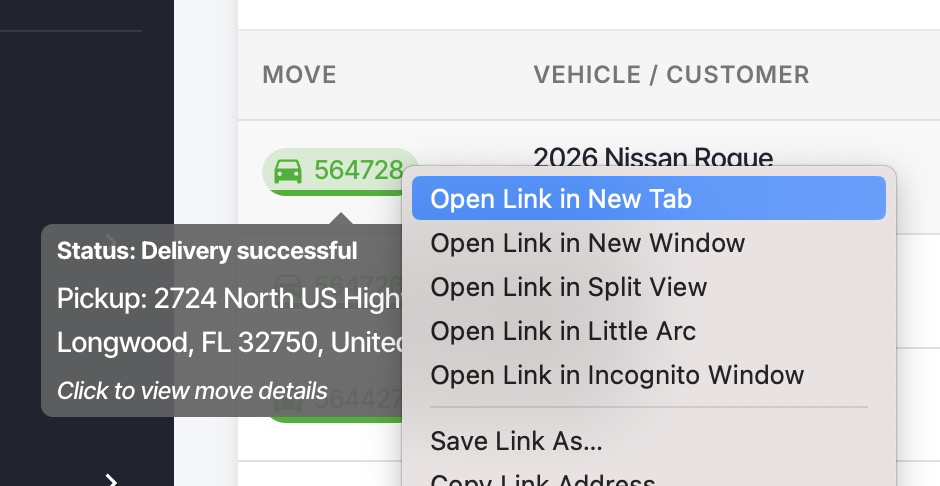
The admin portal gets a major refresh with a cleaner look and updated pages. Links throughout the admin now behave like standard web links. Right-click to open in a new tab, use Ctrl+click (Cmd+click on Mac), or middle-click on sidebar items and move tiles without losing your place.
Locations
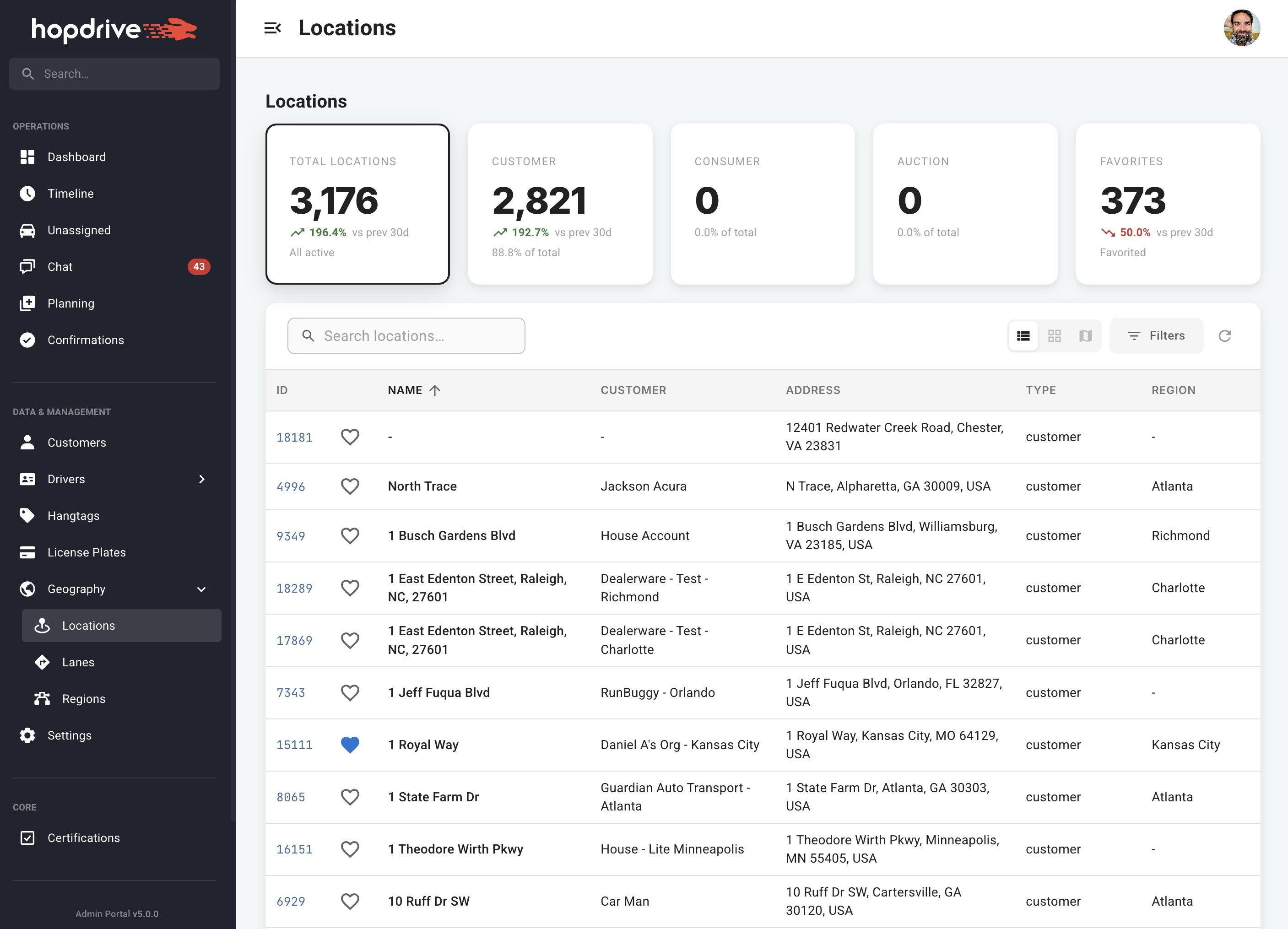
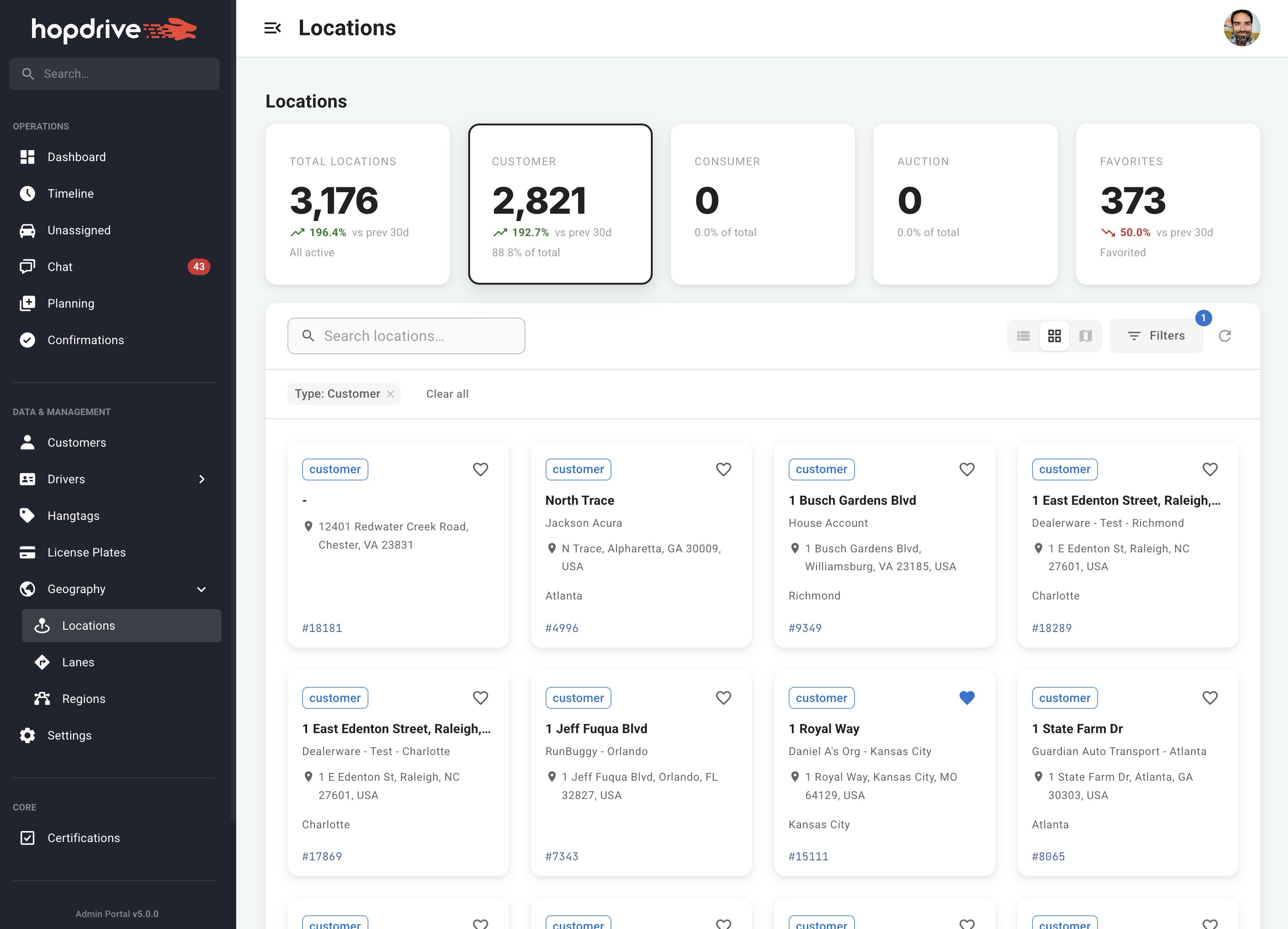
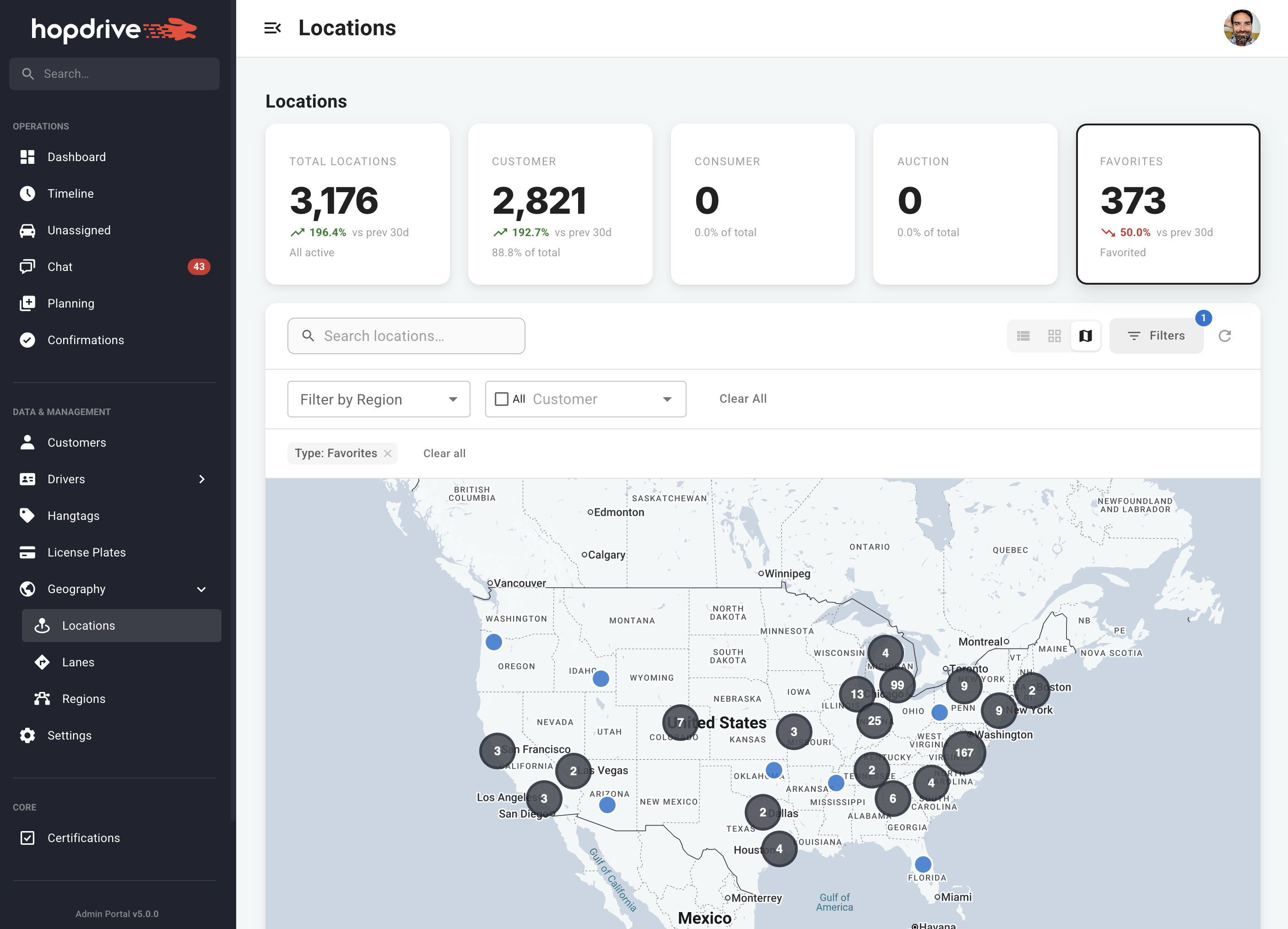
The Locations page now offers three ways to view your data: Table, Grid, and Map. Use the summary cards at the top to quickly filter by type (Total, Customer, Consumer, Auction, Favorites) and see trend indicators. Filter by region or customer, mark locations as favorites, and add new locations from the empty state when you have none.
Plates
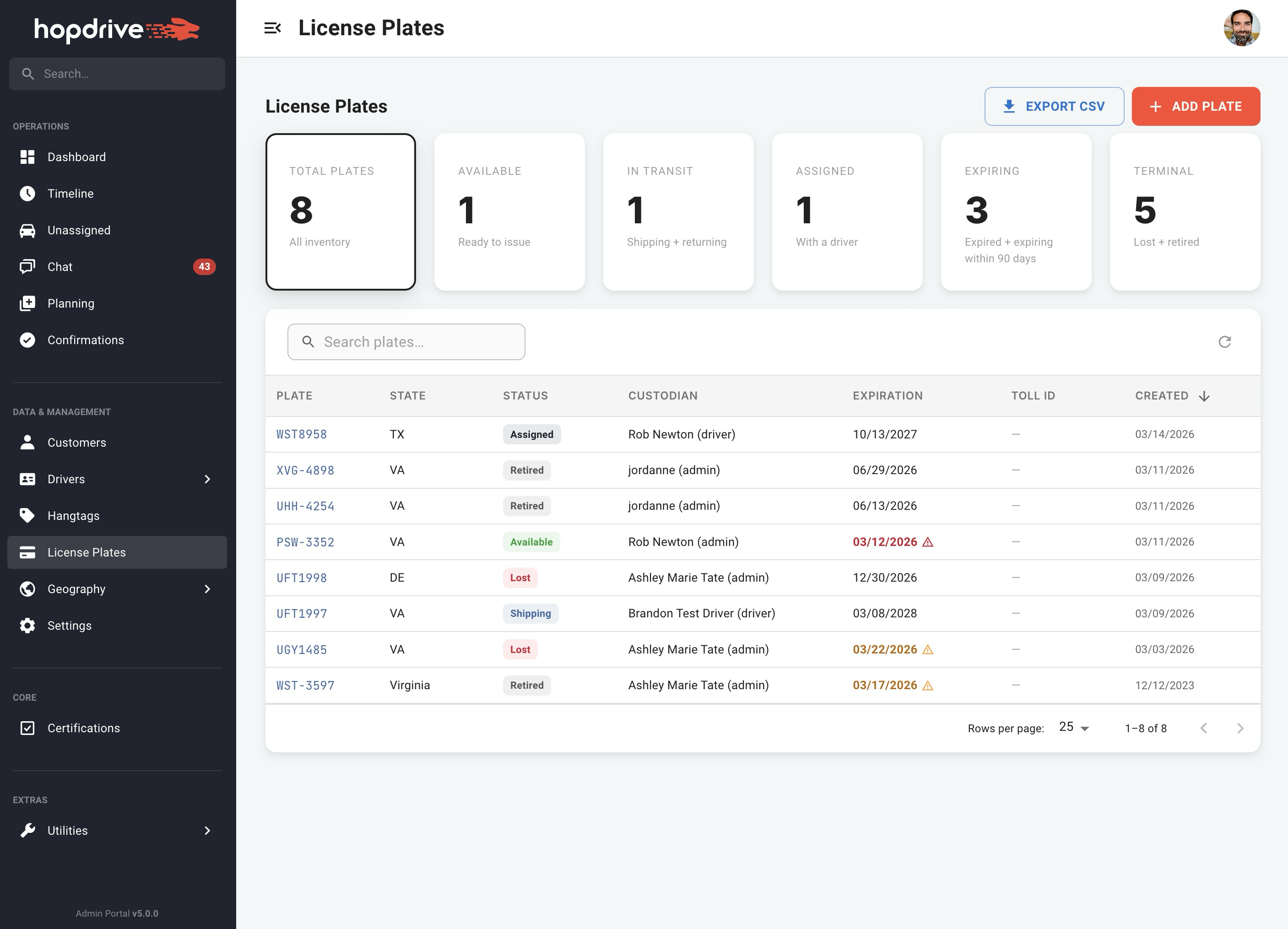
Manage plates with quick filters by status (Total, Available, In Transit, Assigned, Expiring, Terminal). Search by plate number, state, driver name, or toll ID. Export to CSV, add new plates, and open the detail panel for more information.
Plate Detail Page
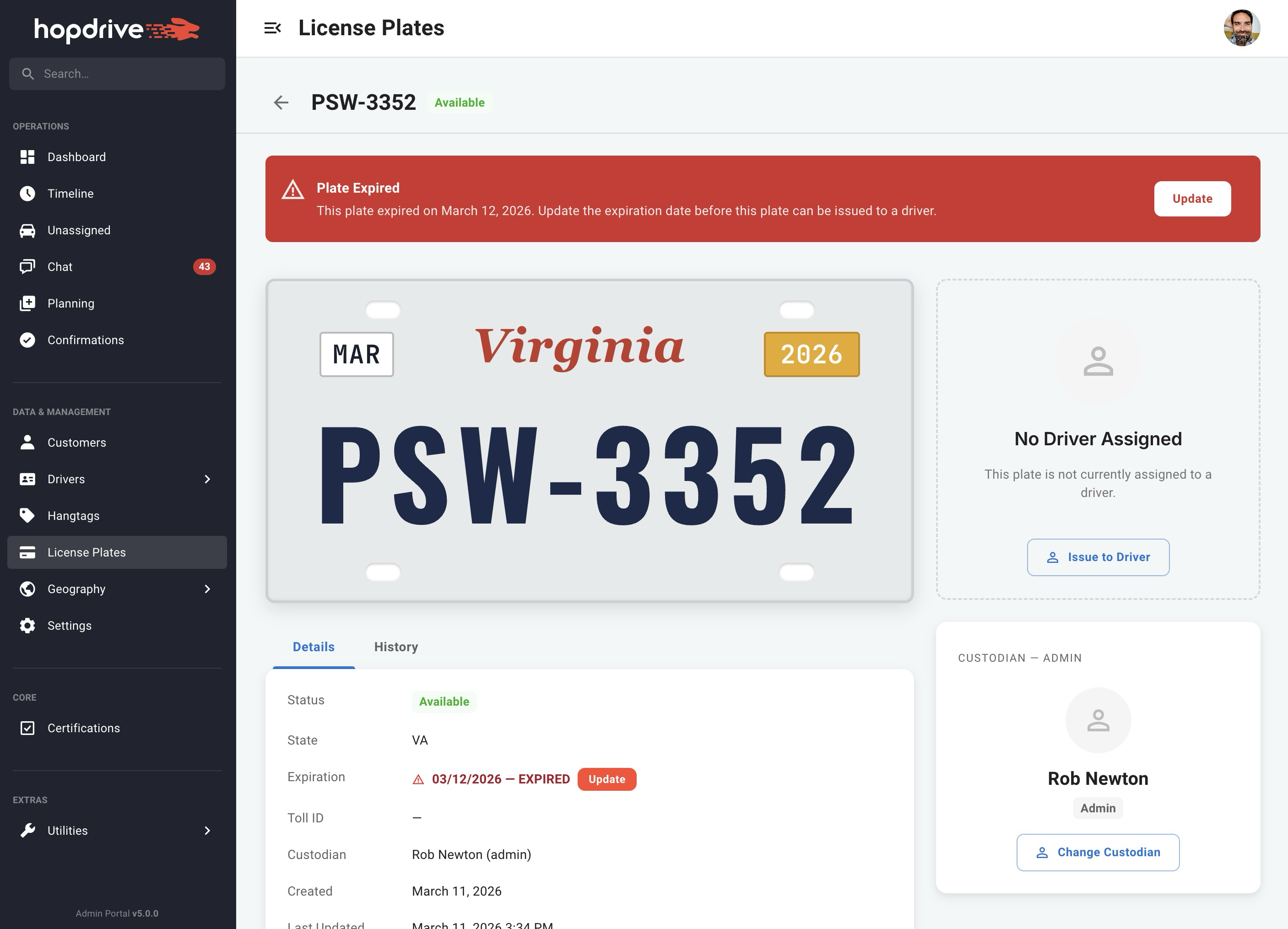
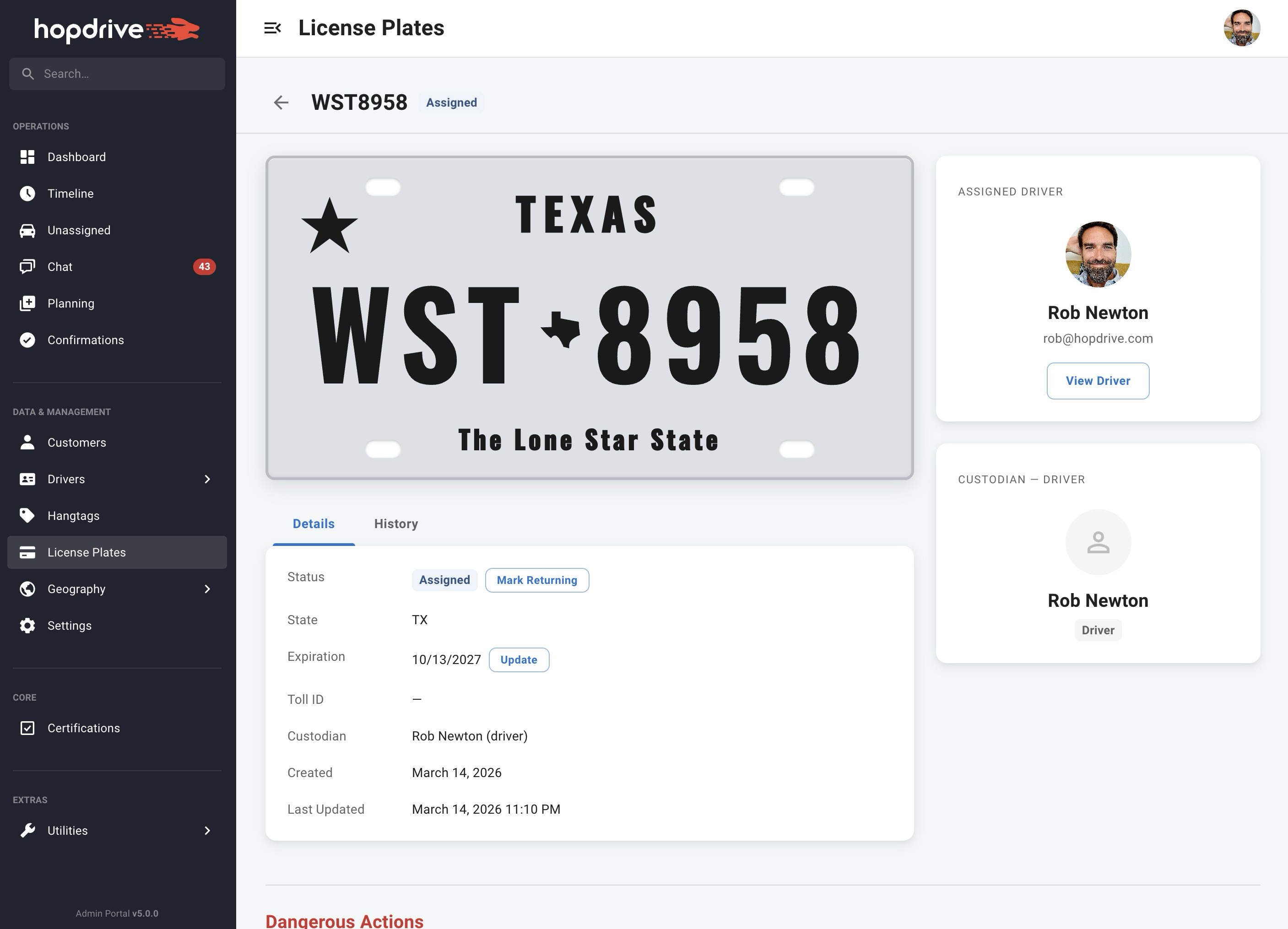
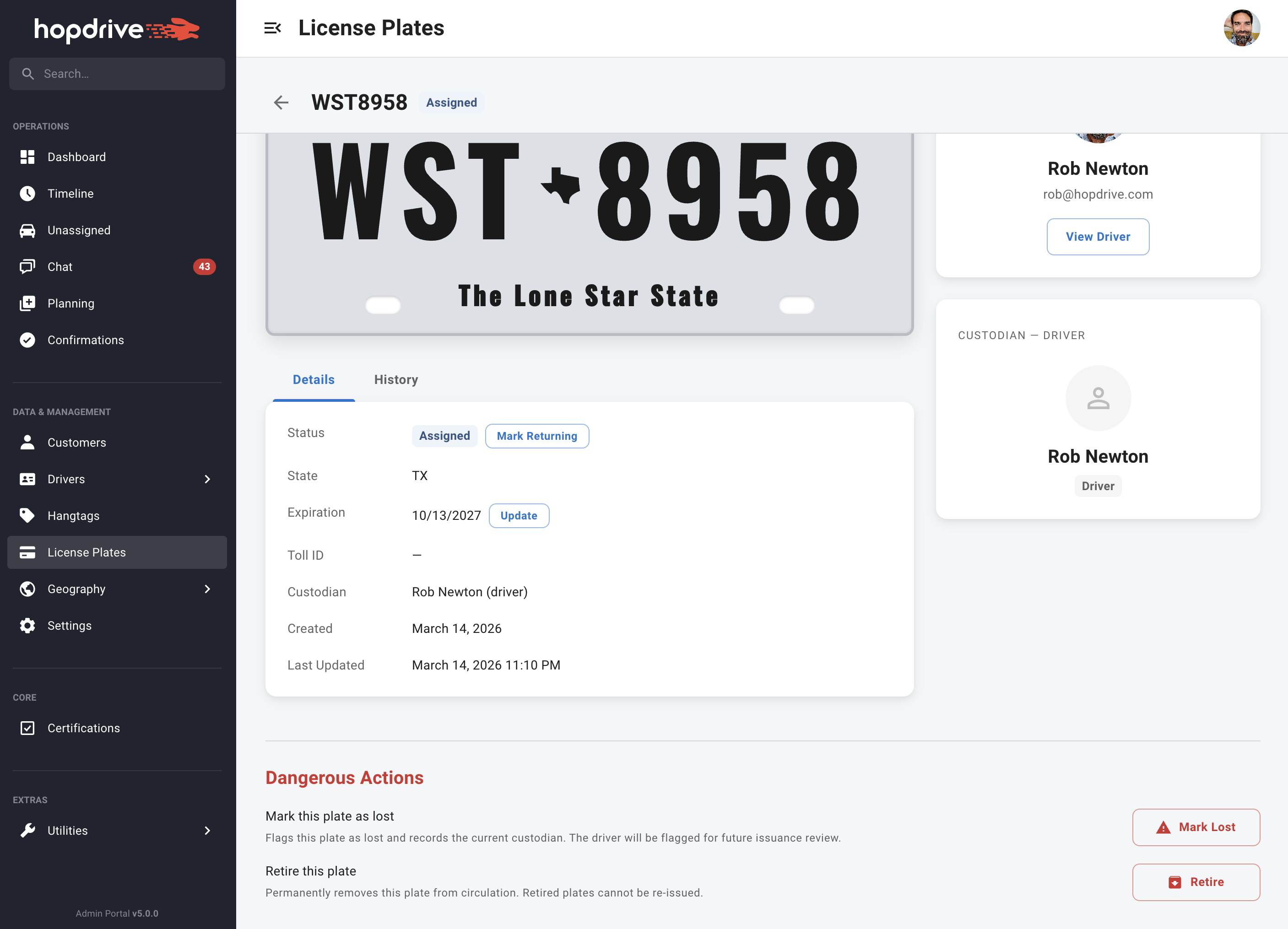
A new dedicated plate detail page replaces the slide-out panel. See a visual representation of the plate (including state-specific designs like Texas and California), view full metadata, and track history. Update status with inline buttons (Shipping → Assigned → Returning → Available), issue plates to drivers, and handle expired plates with a clear alert. Actions like Mark Lost or Retire require confirmation to avoid mistakes.
Workflows
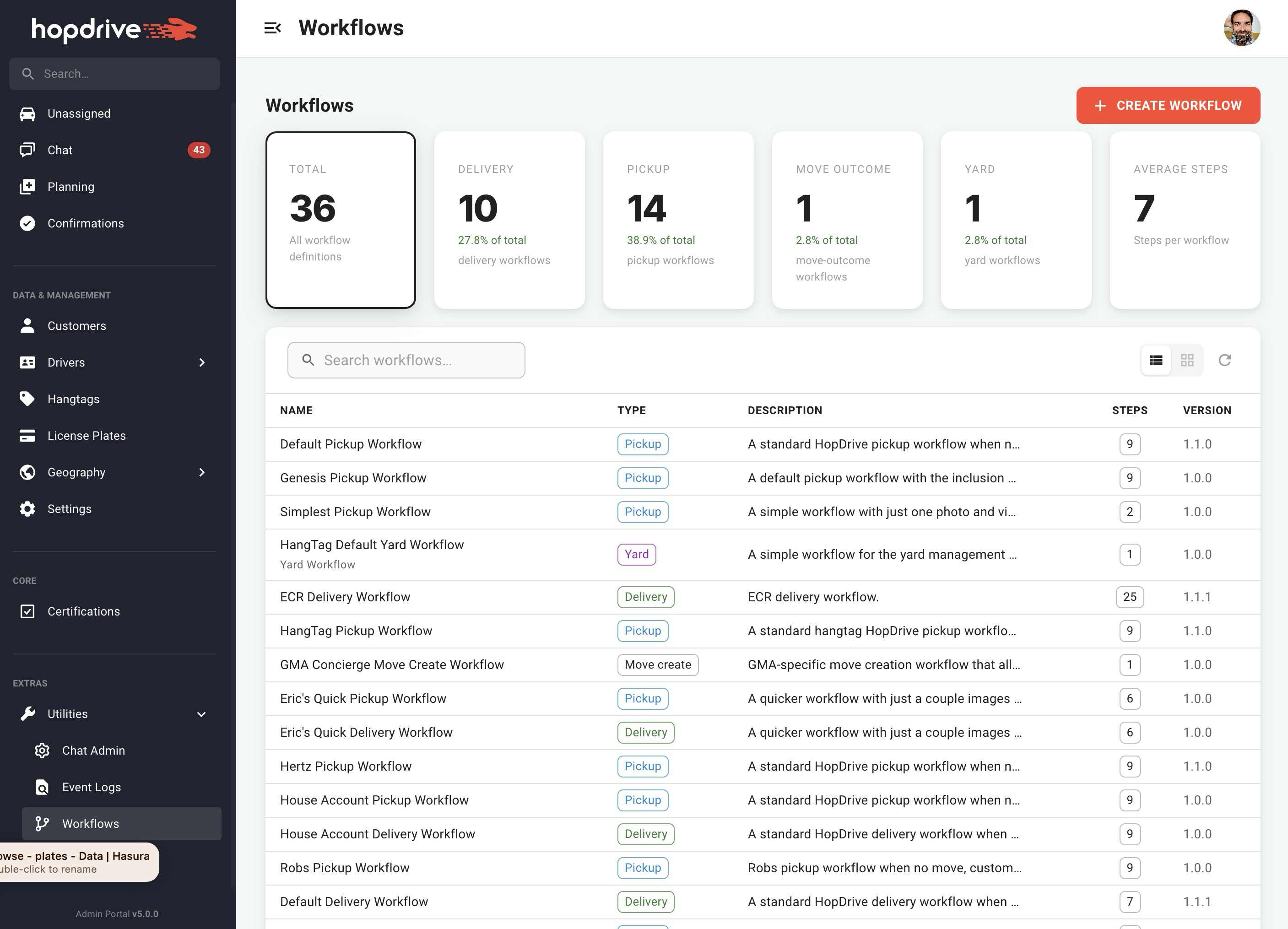
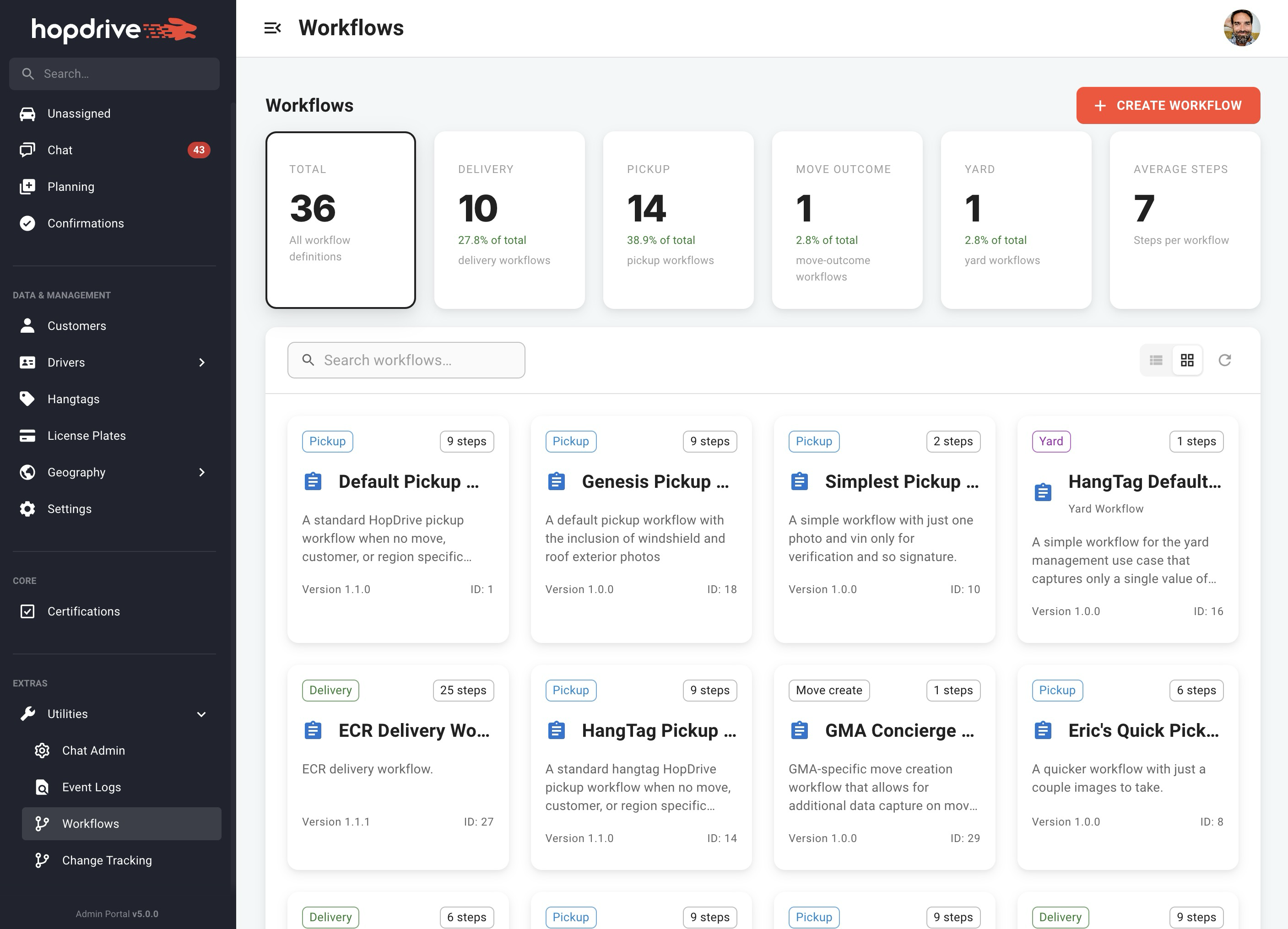
View workflows in Table or Grid view. Filter by type (Delivery, Pickup, Move Outcome, Yard) and search by name, description, or label. Create new workflows and see step counts at a glance on grid cards.
Certifications
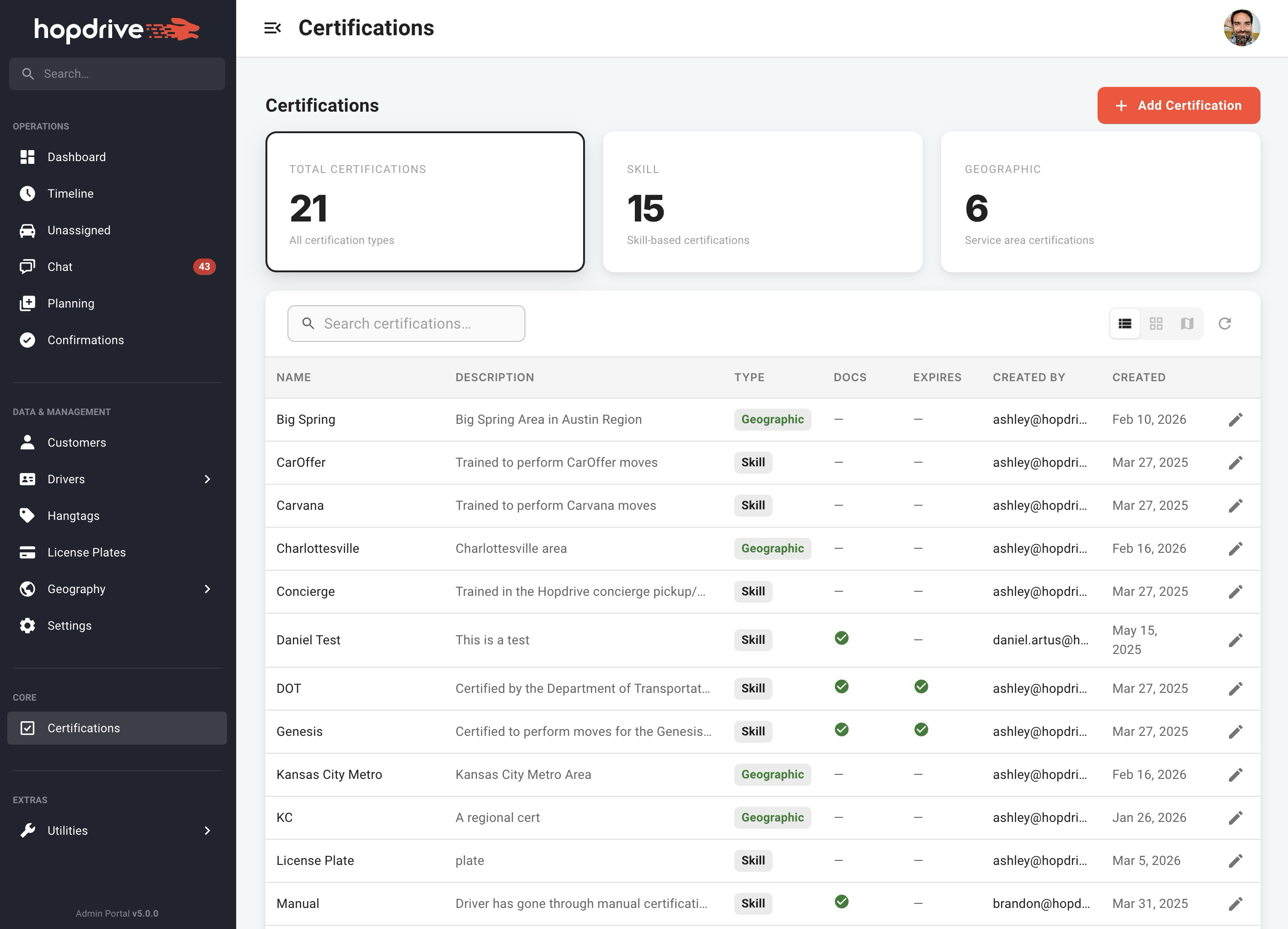
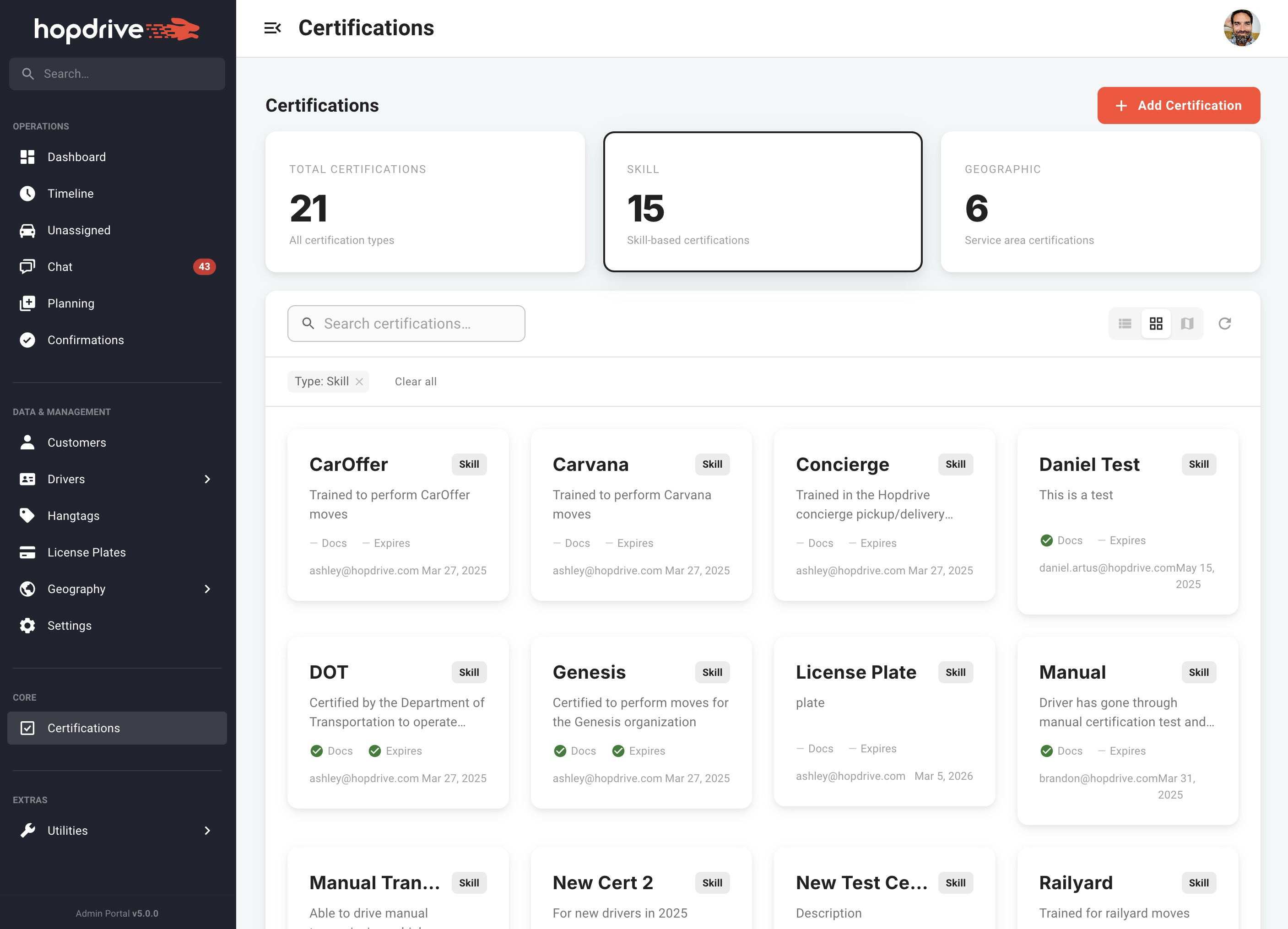
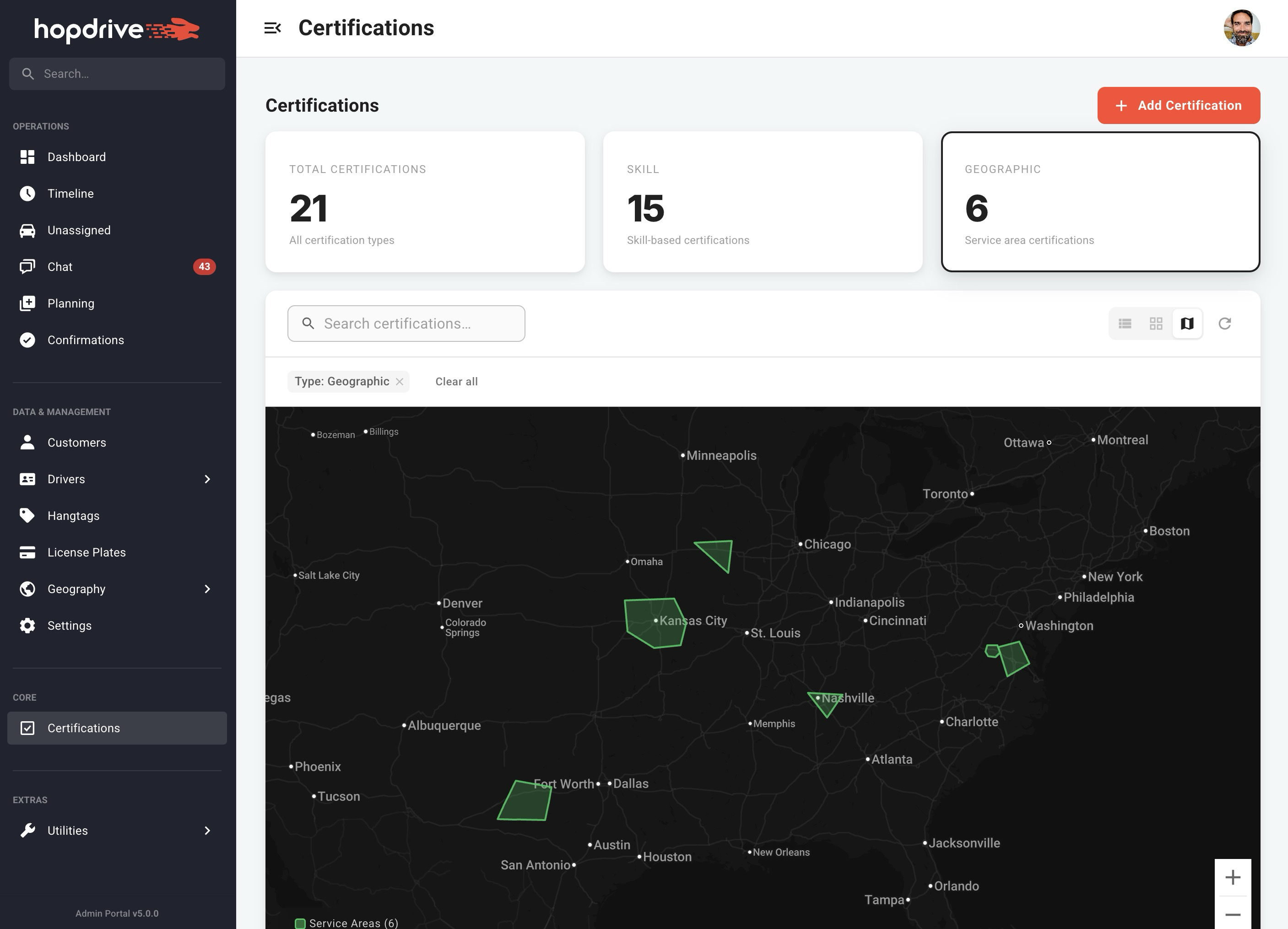
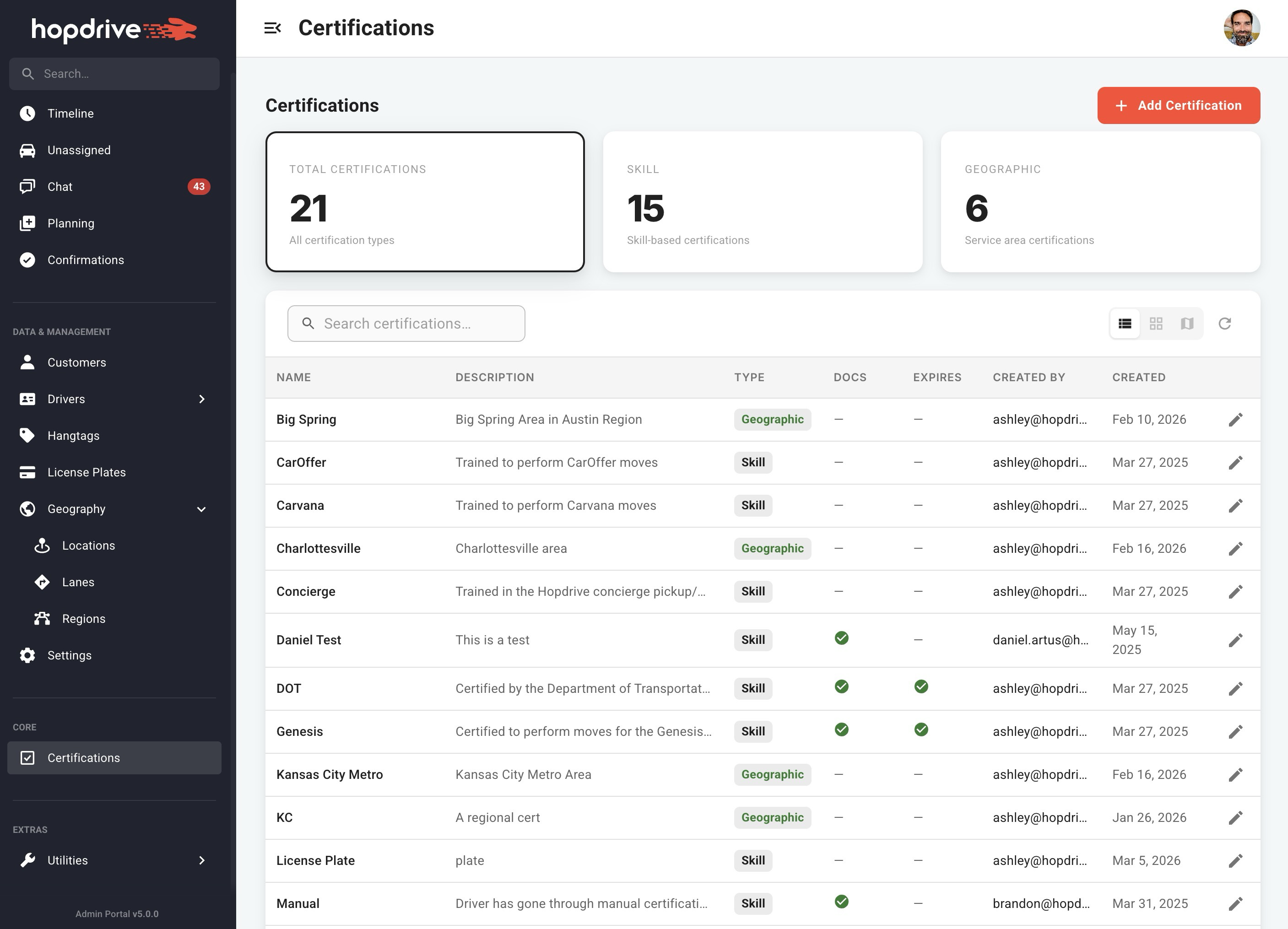
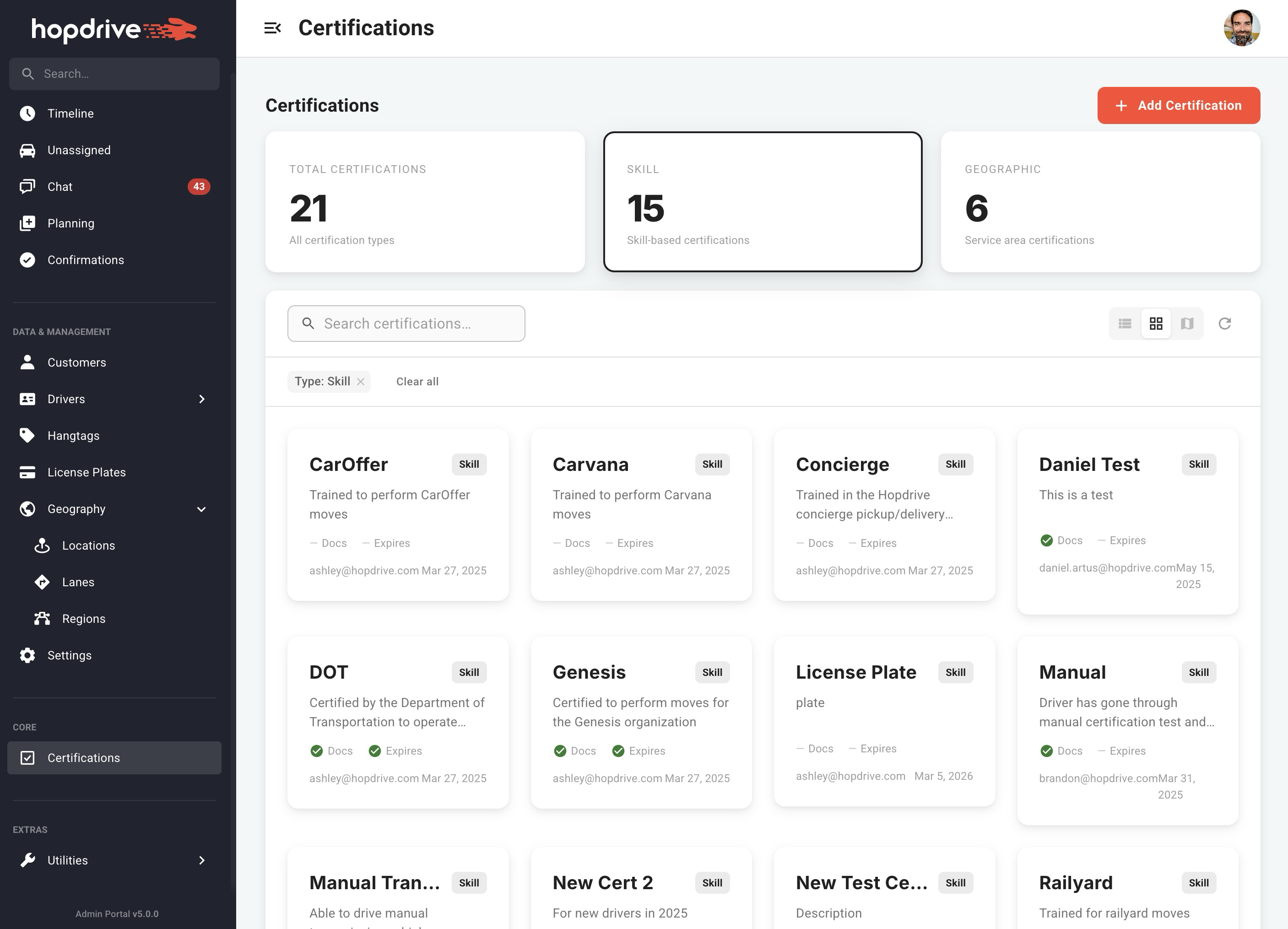
Browse certifications in Table, Grid, or Map view. The map shows geographic service areas. Filter by type (Skill or Geographic) and search by name or description. Add new certifications from the landing page.
Certification Detail Page
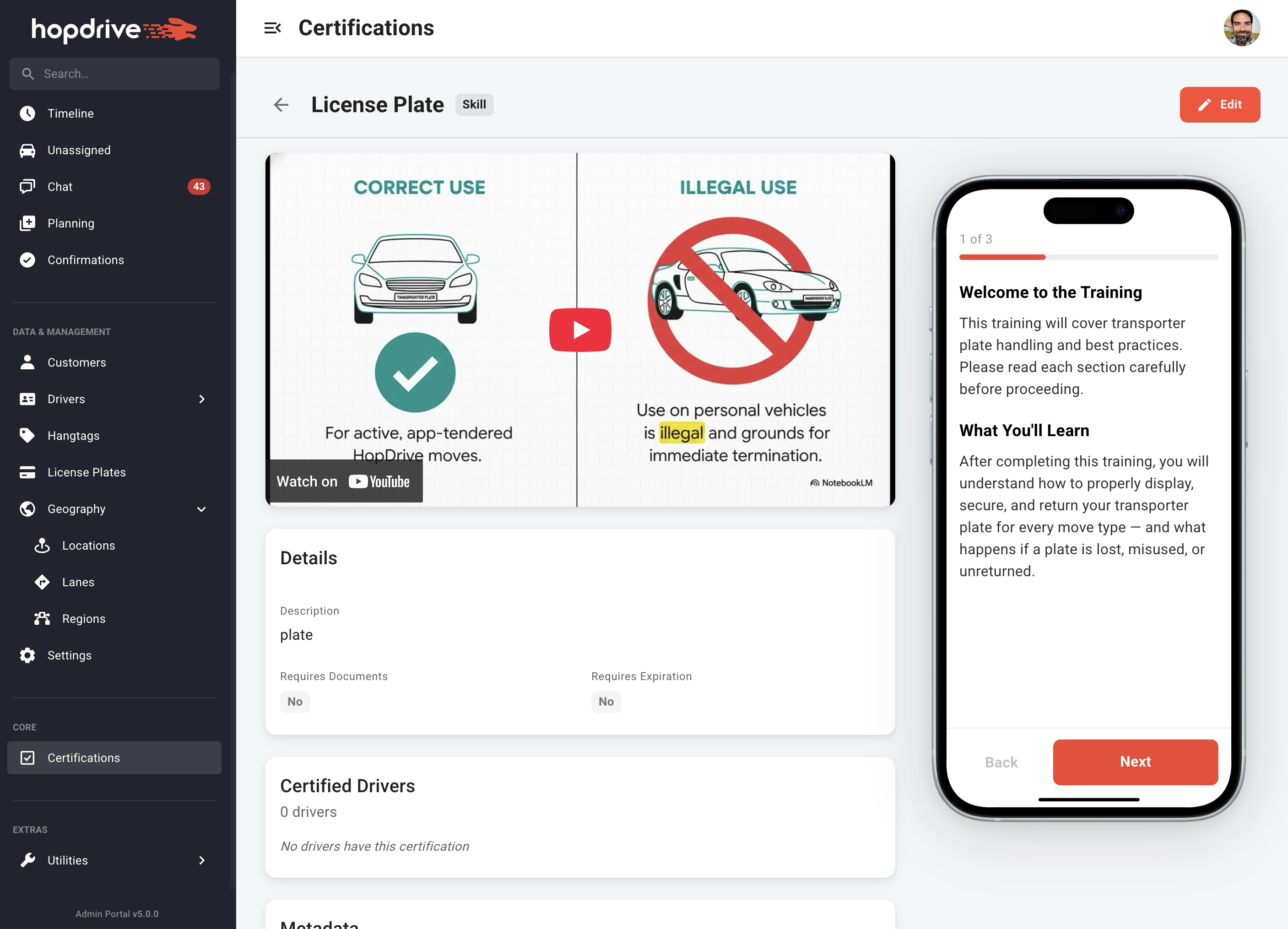
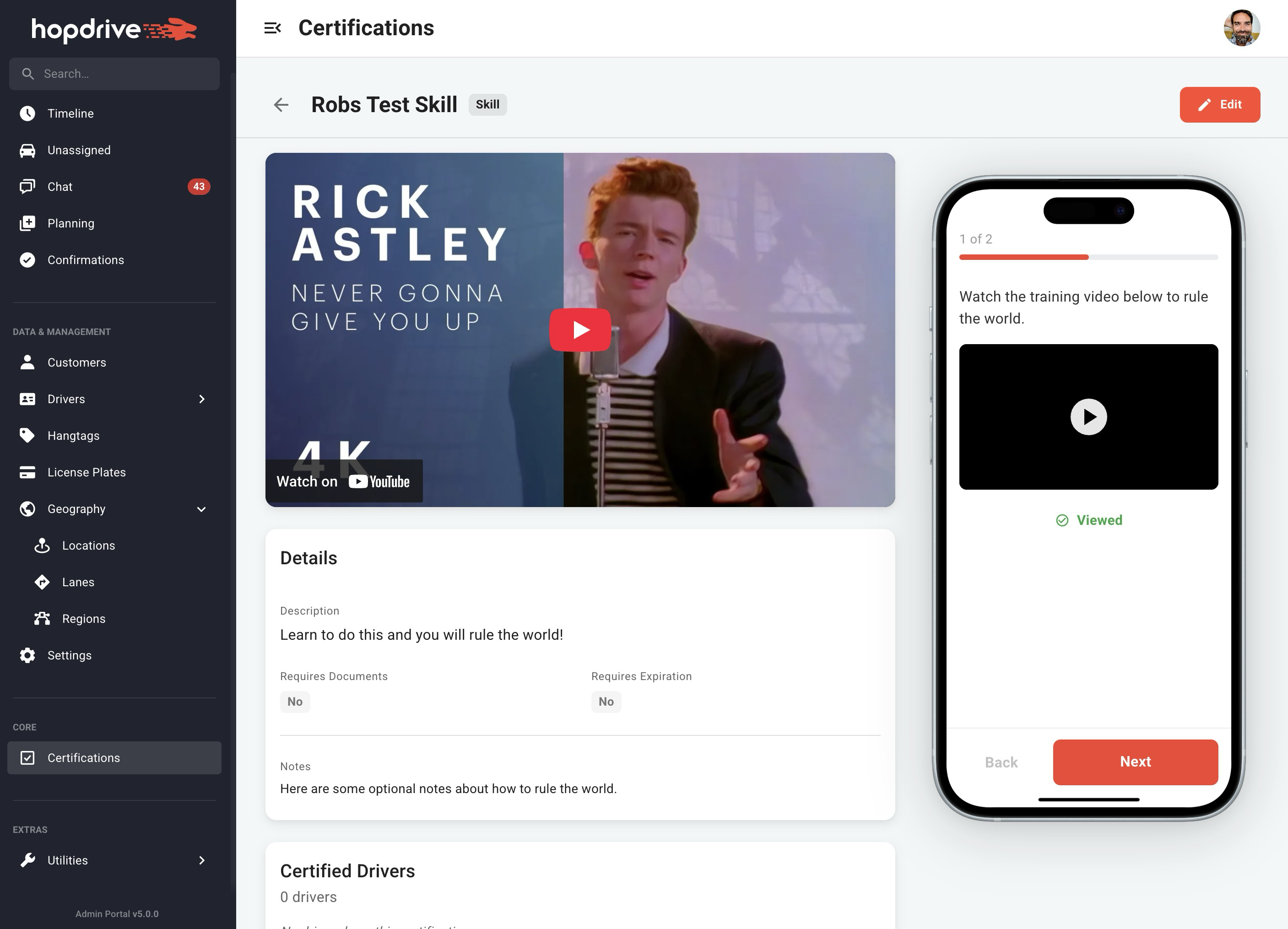
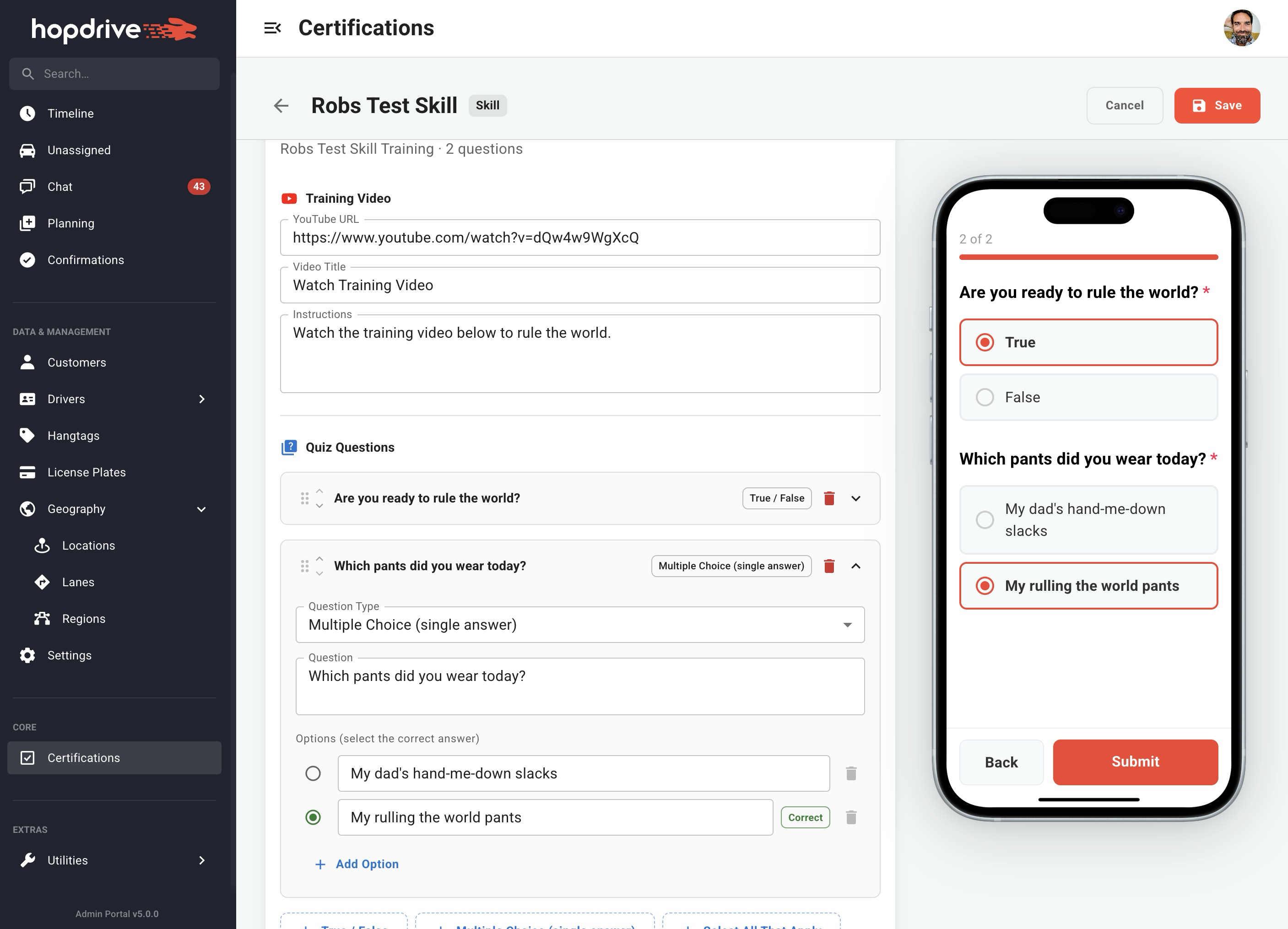
A new certification detail page replaces modal-based editing. In view mode, watch the training video, see certified drivers with expiration status, and view metadata. In edit mode, update certification details and build quizzes with True/False, Multiple Choice, or Select All That Apply questions. Reorder questions with drag-and-drop or arrow buttons. An iPhone preview lets you see how the quiz will look and behave for drivers, including pass/fail scoring (80% to pass). New certifications can be created from the Add Certification button.
Confirmations
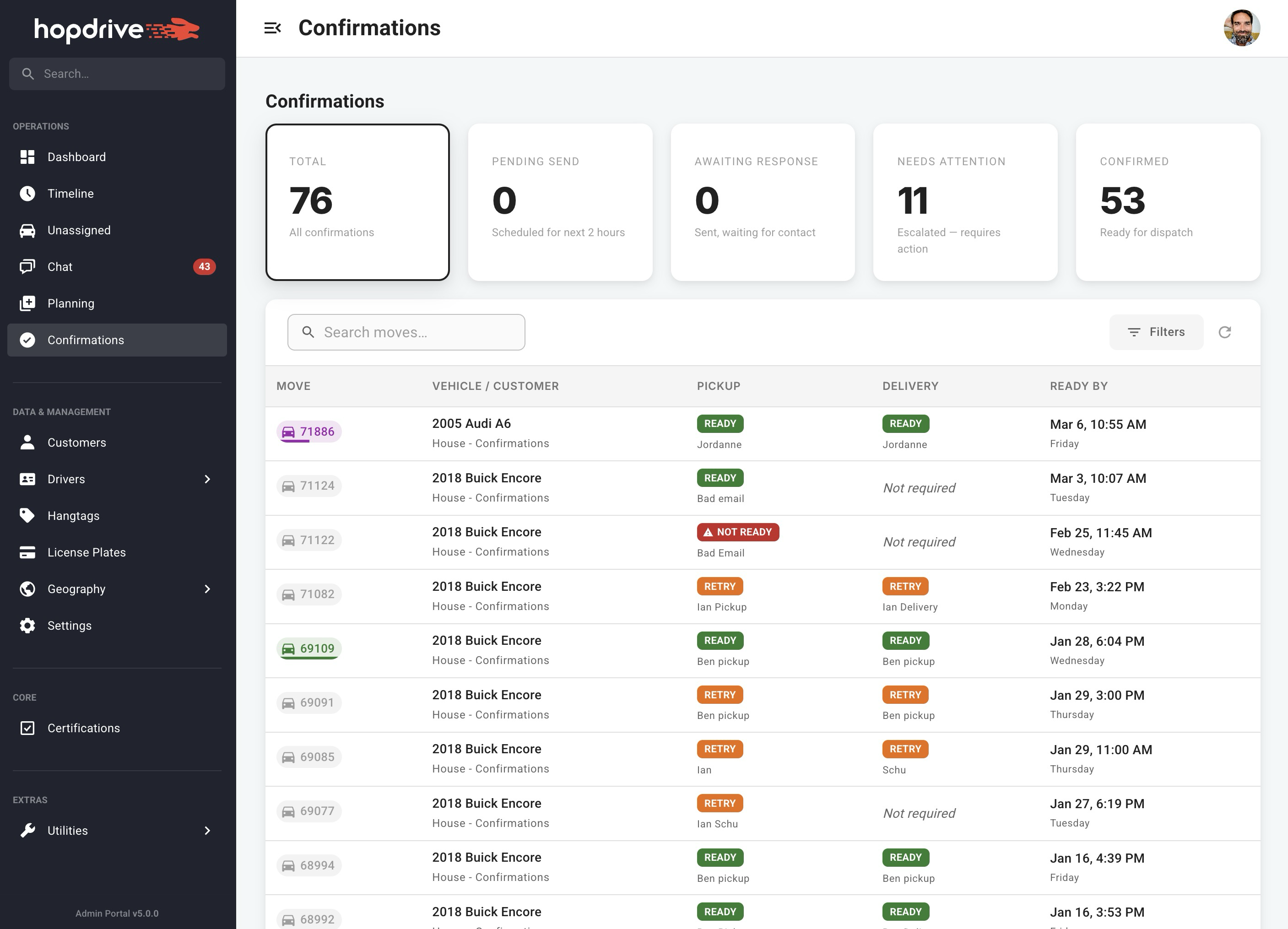
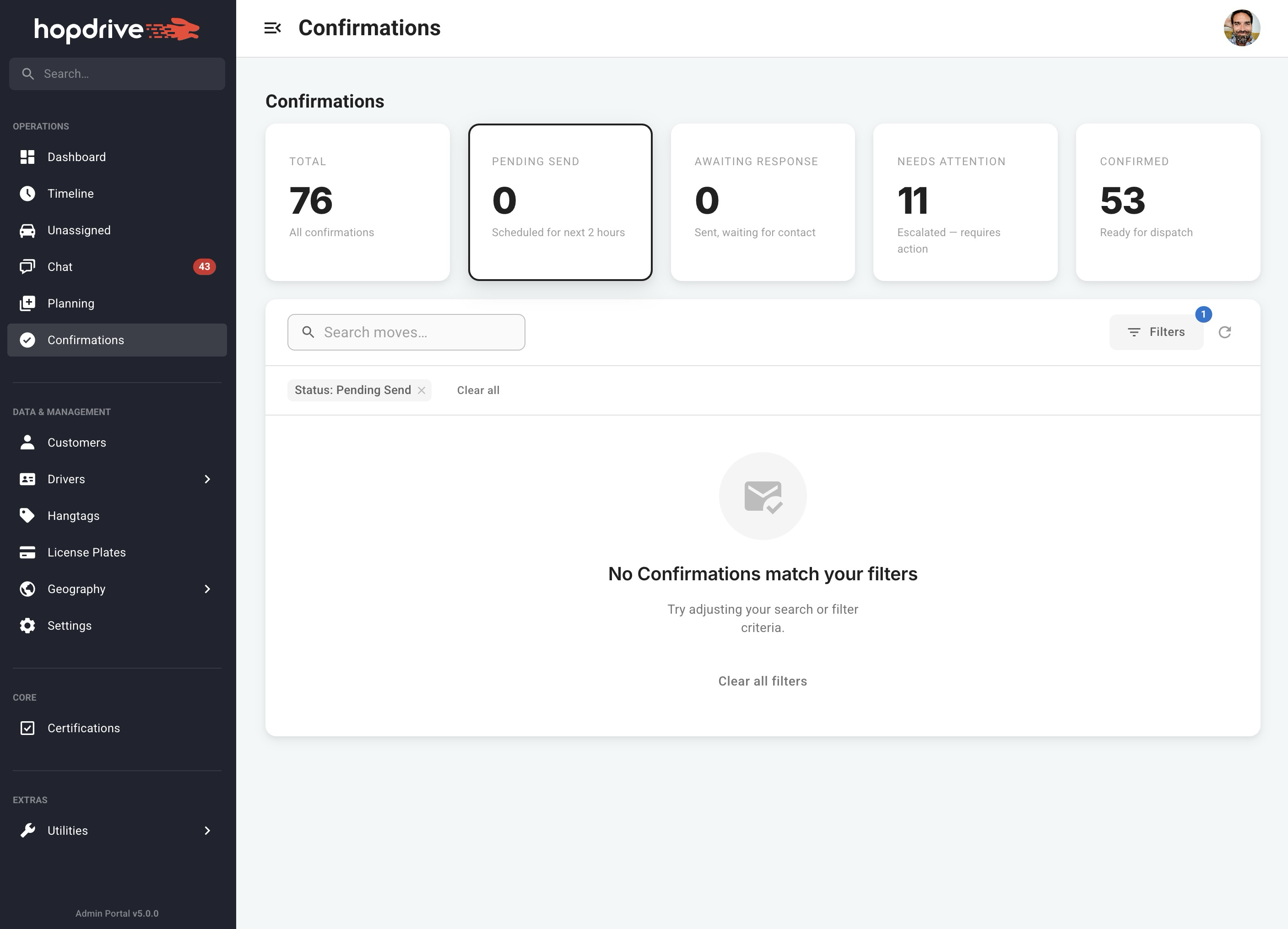
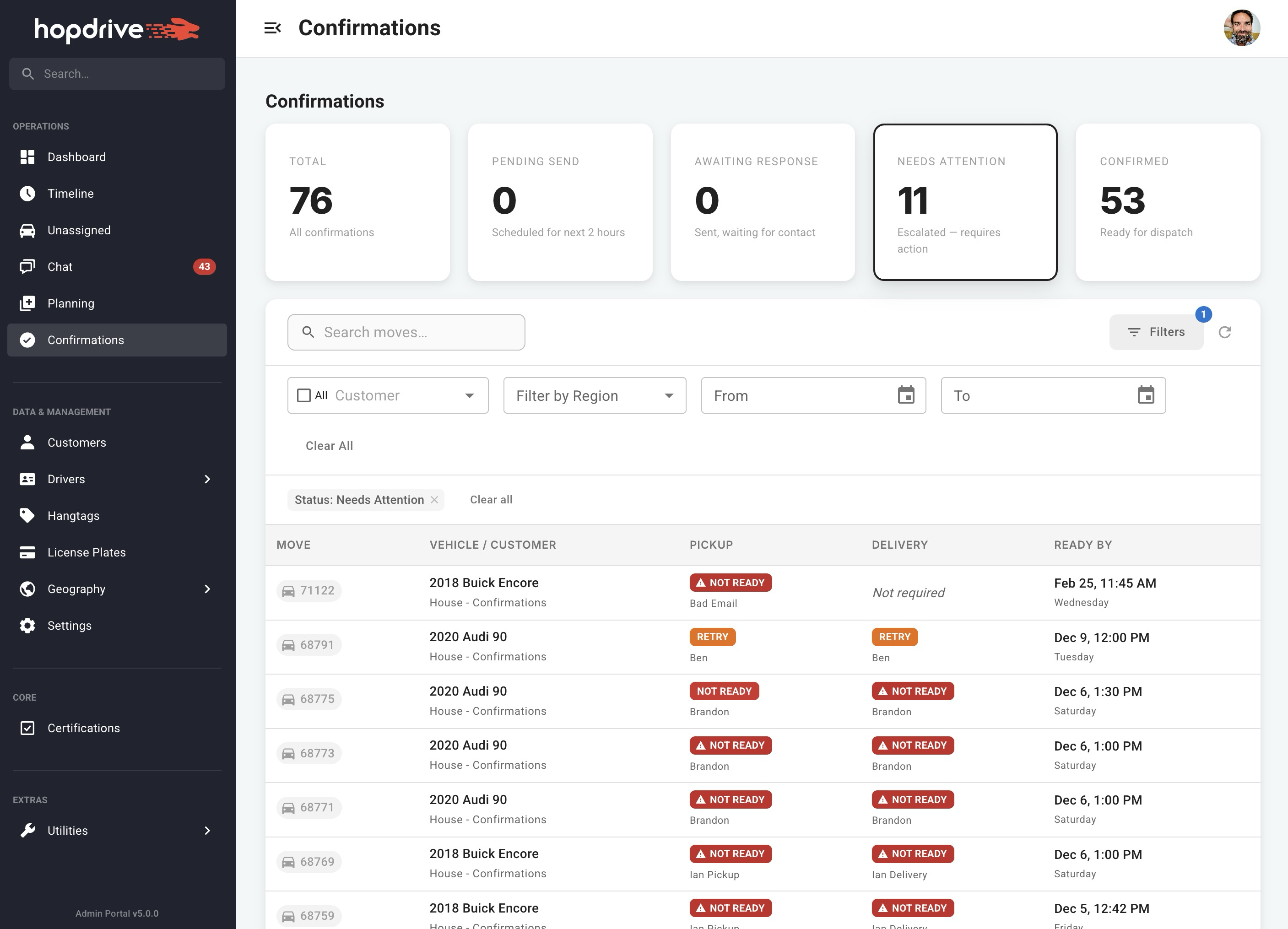
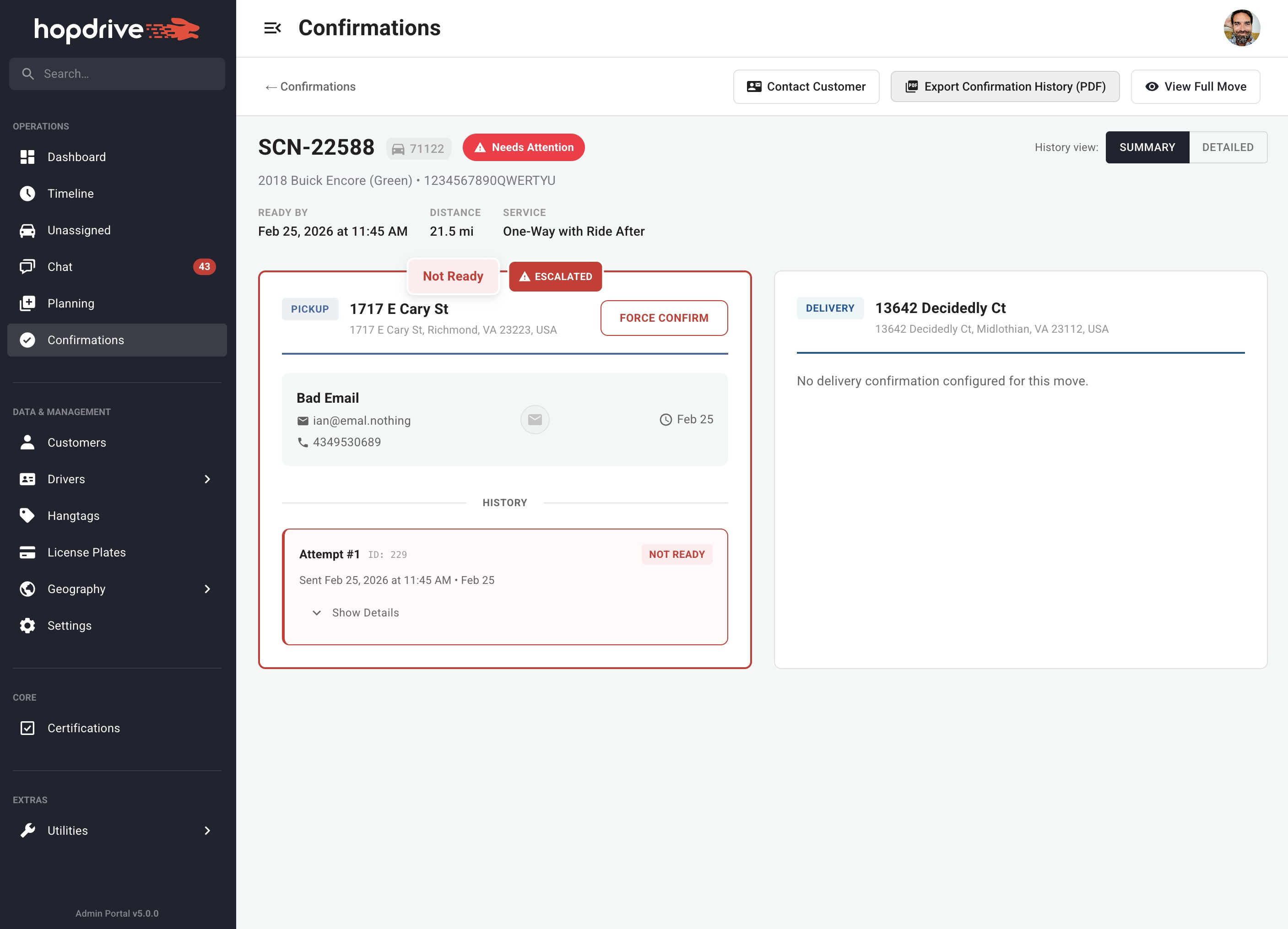
Track confirmations with status-based summary cards (Pending Send, Awaiting Response, Needs Attention, Confirmed, Unconfirmed, Not Ready). Filter by customer, region, and date range. Use presets like Today, Tomorrow, This Week, or This Month, and clear individual filters with badges.
Customers
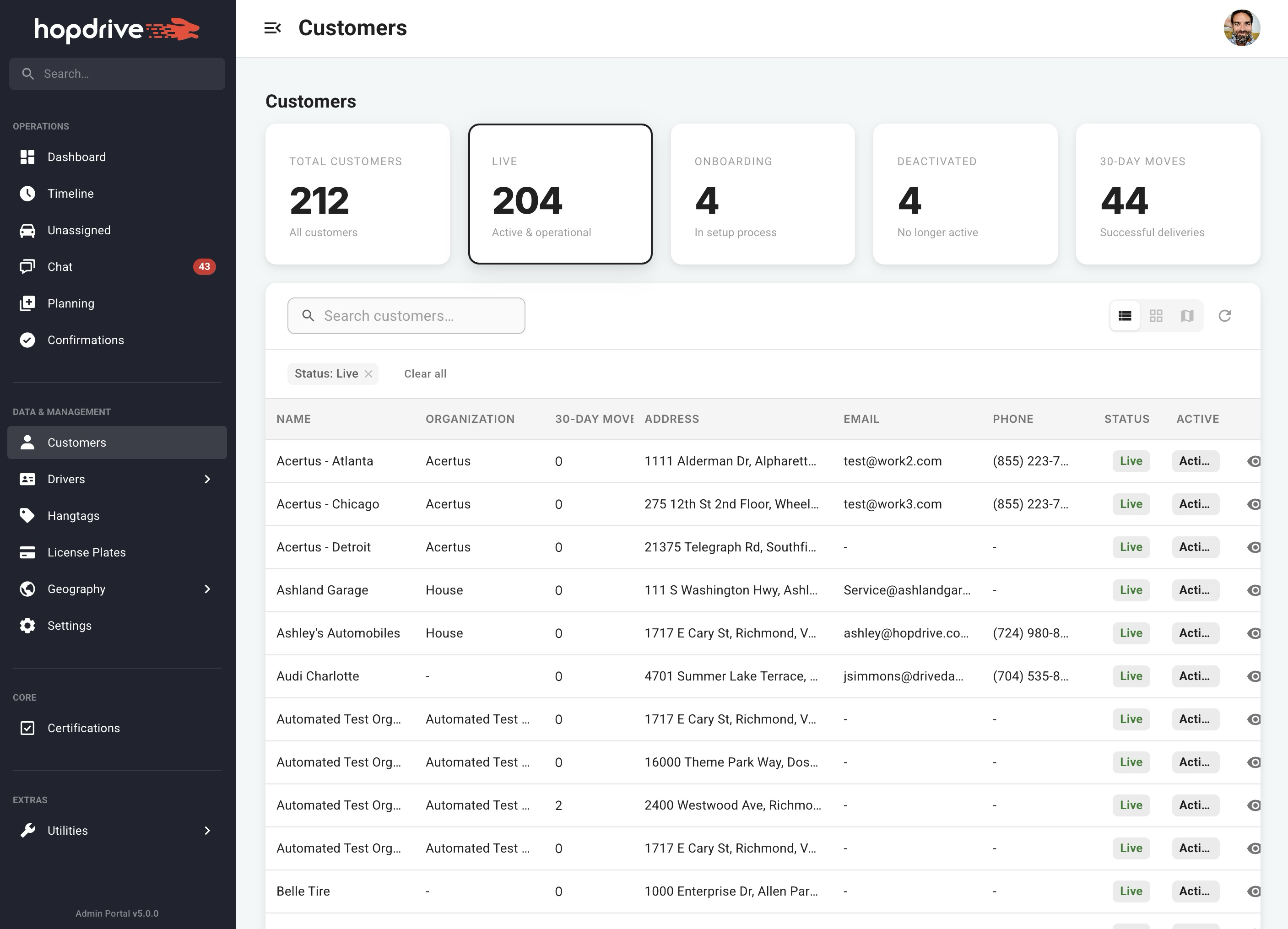
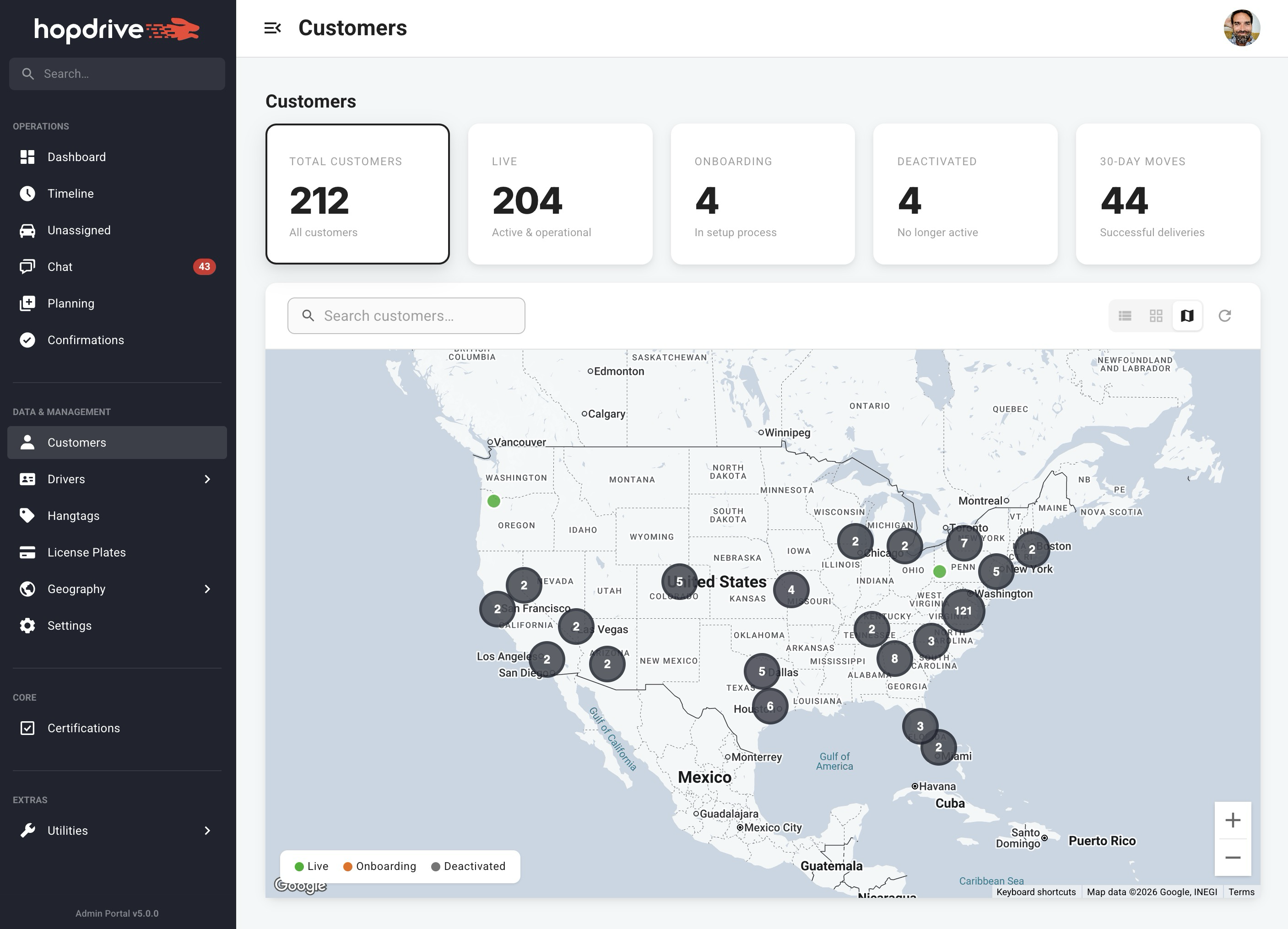
View customers in Table, Grid, or Map view. Filter by status (Active/Inactive) and search by name or ID. The map shows customer locations. Add new customers from the empty state.
Drivers
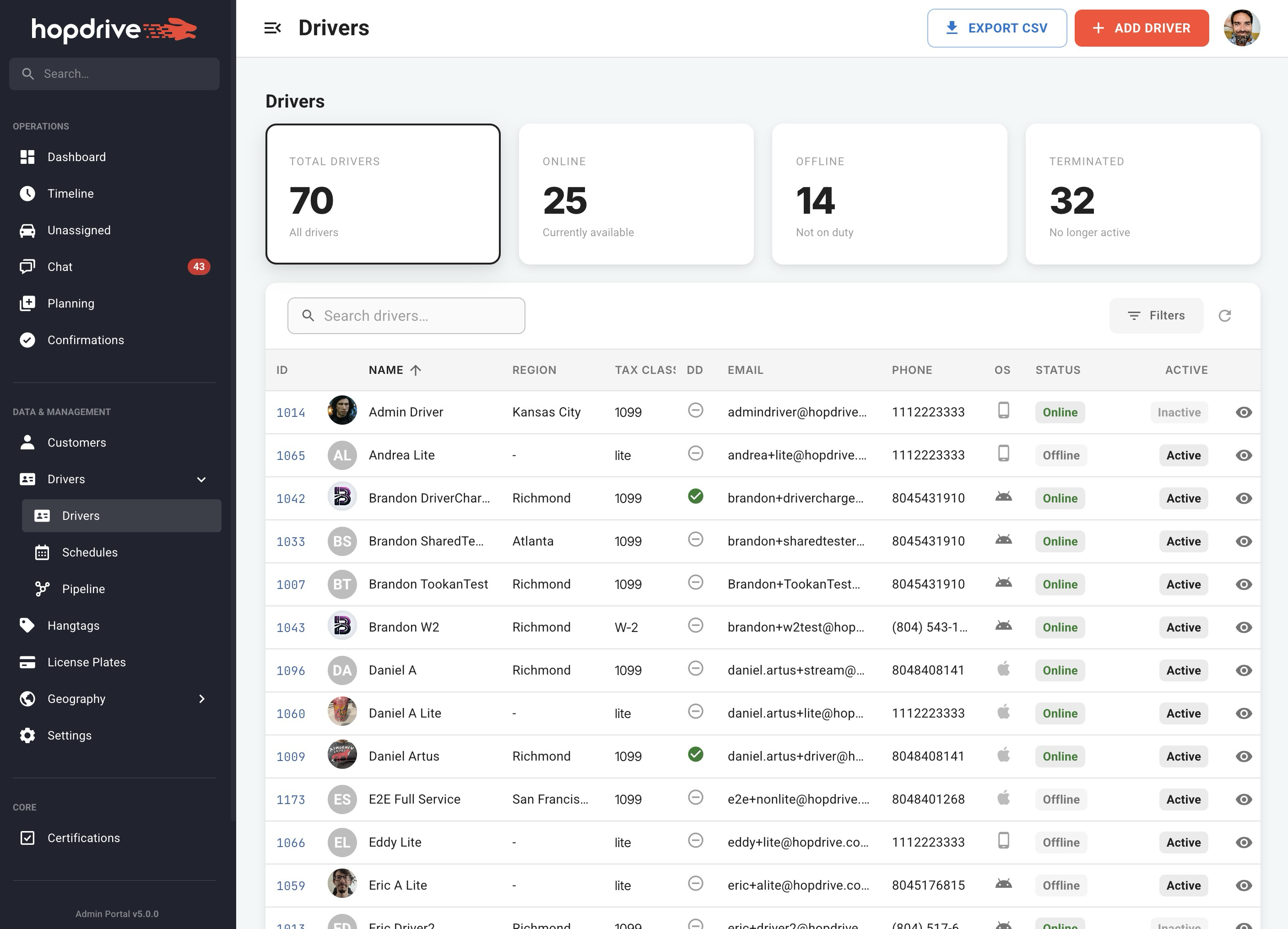
Filter drivers by status (Total, Online, Offline, Terminated), region, and tax class (1099/W-2). Export to CSV and add drivers from the header. Your filter choices are remembered for your next visit.
Driver Pipeline
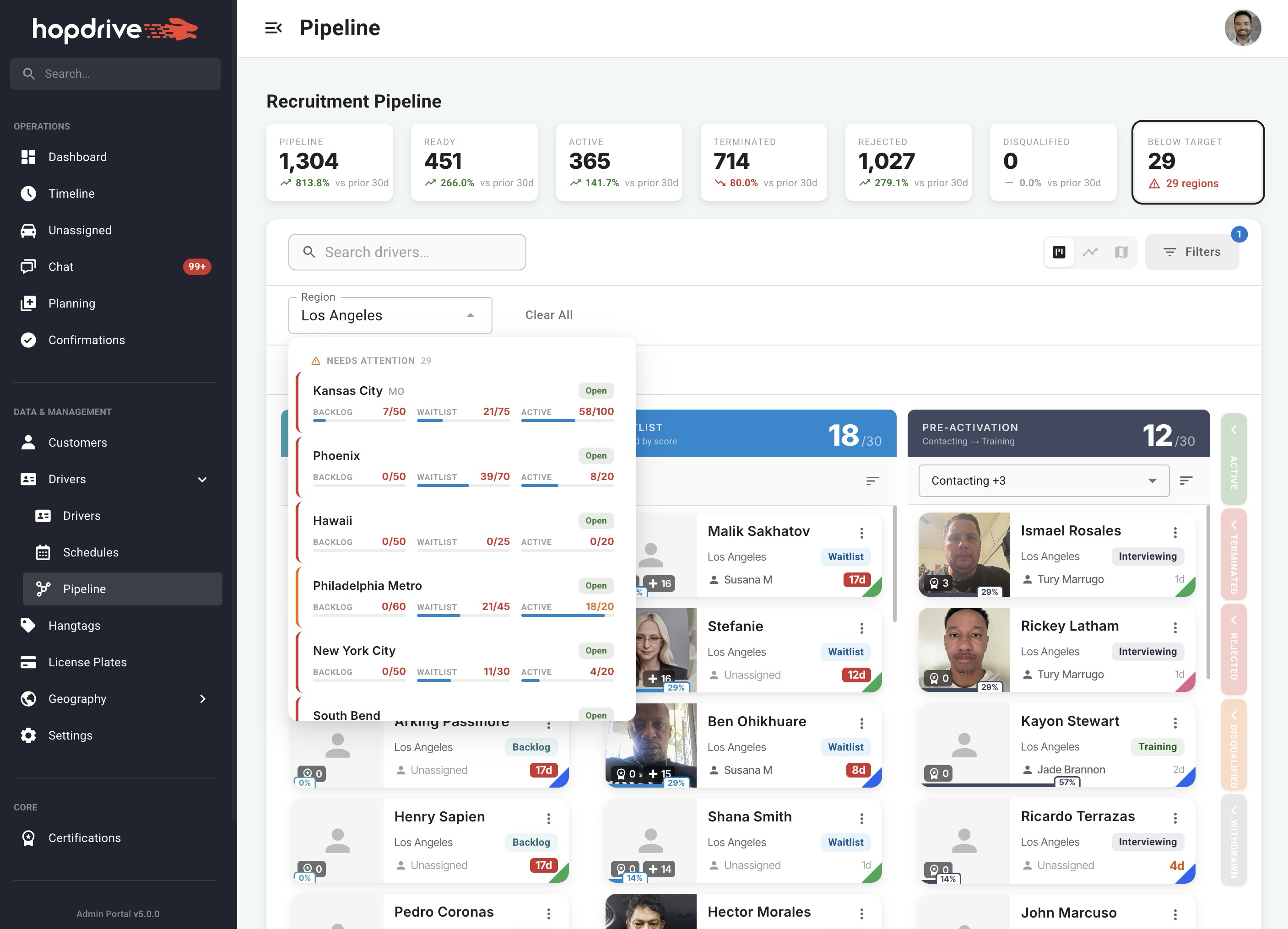
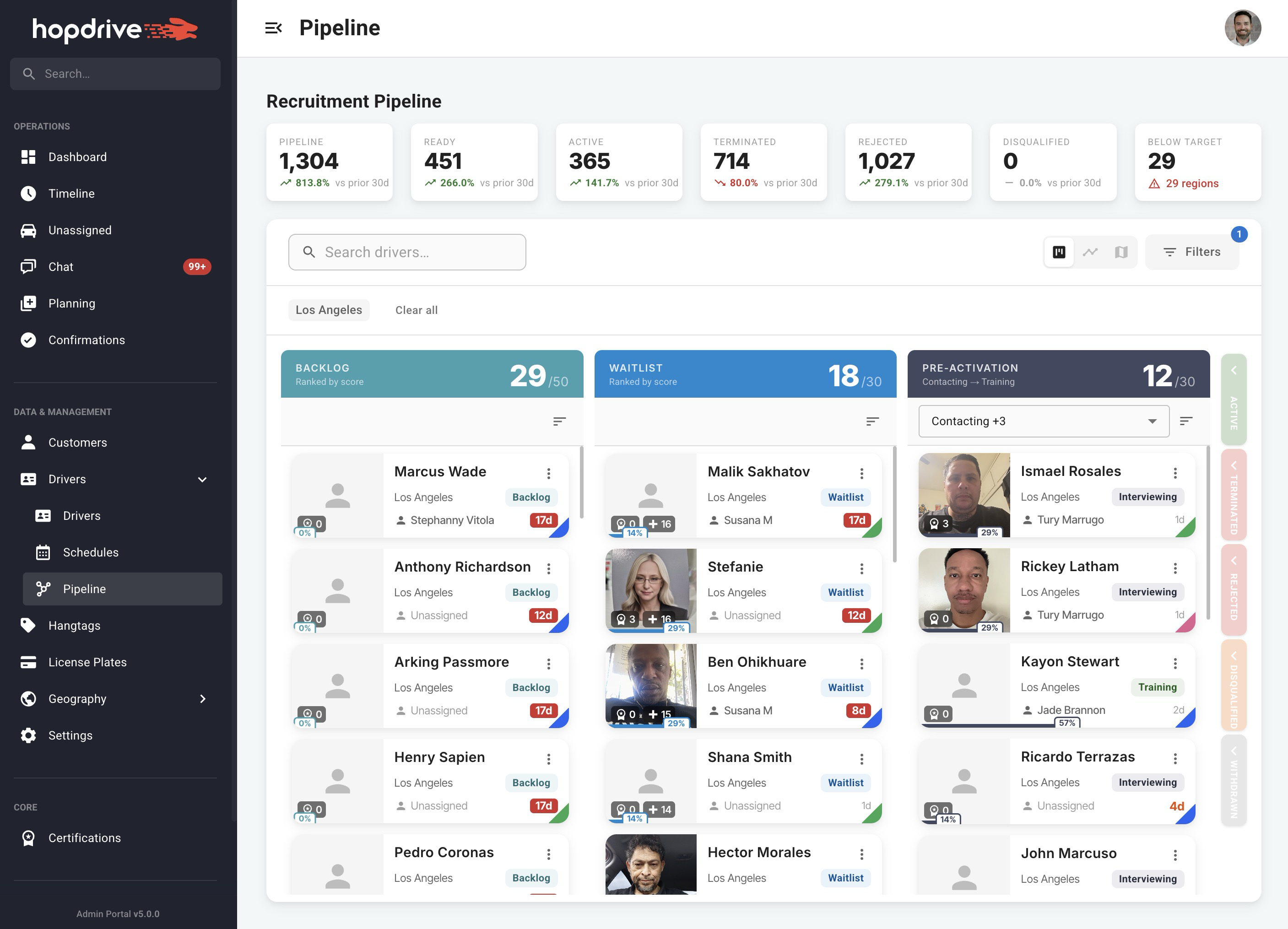
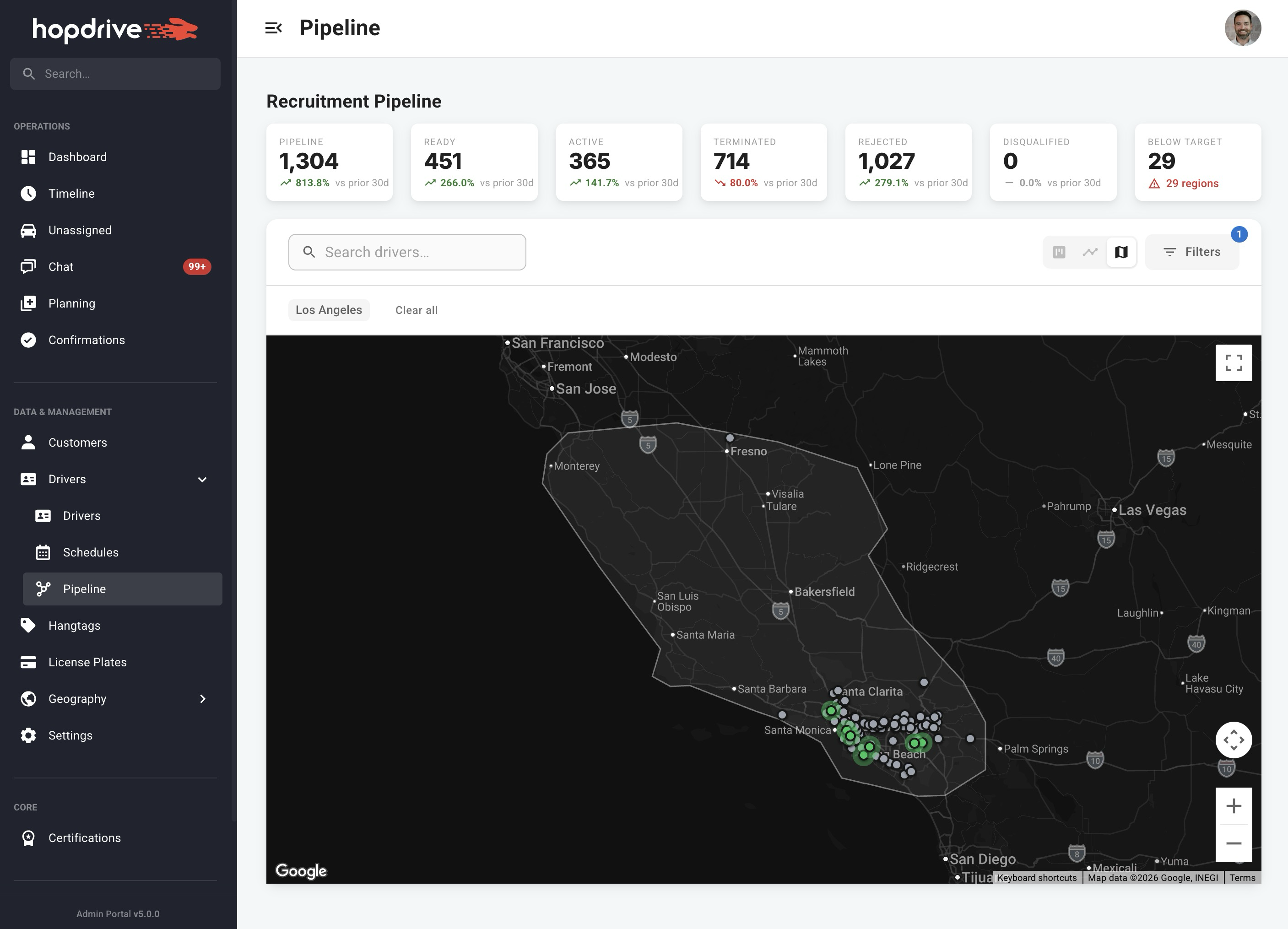
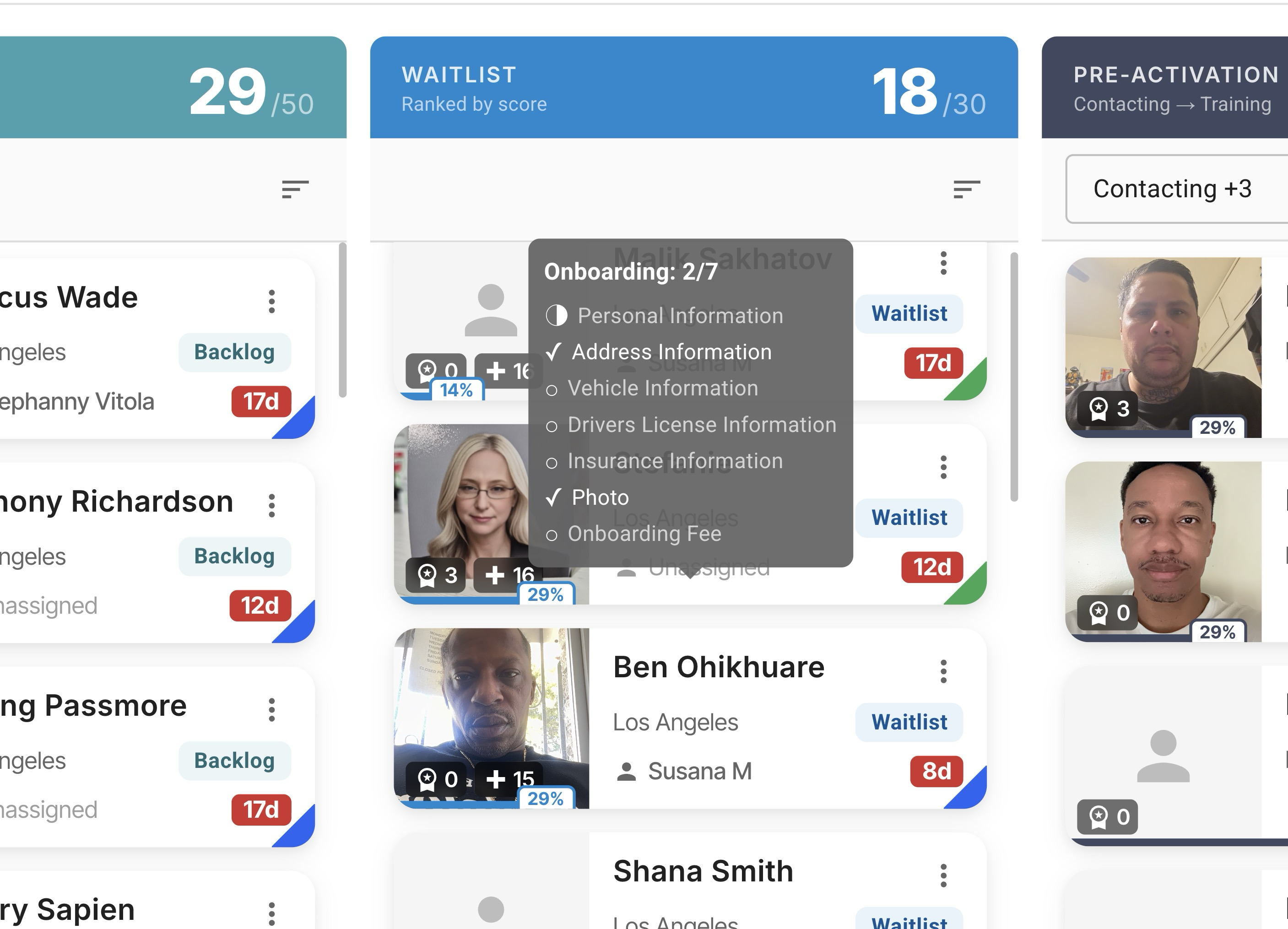
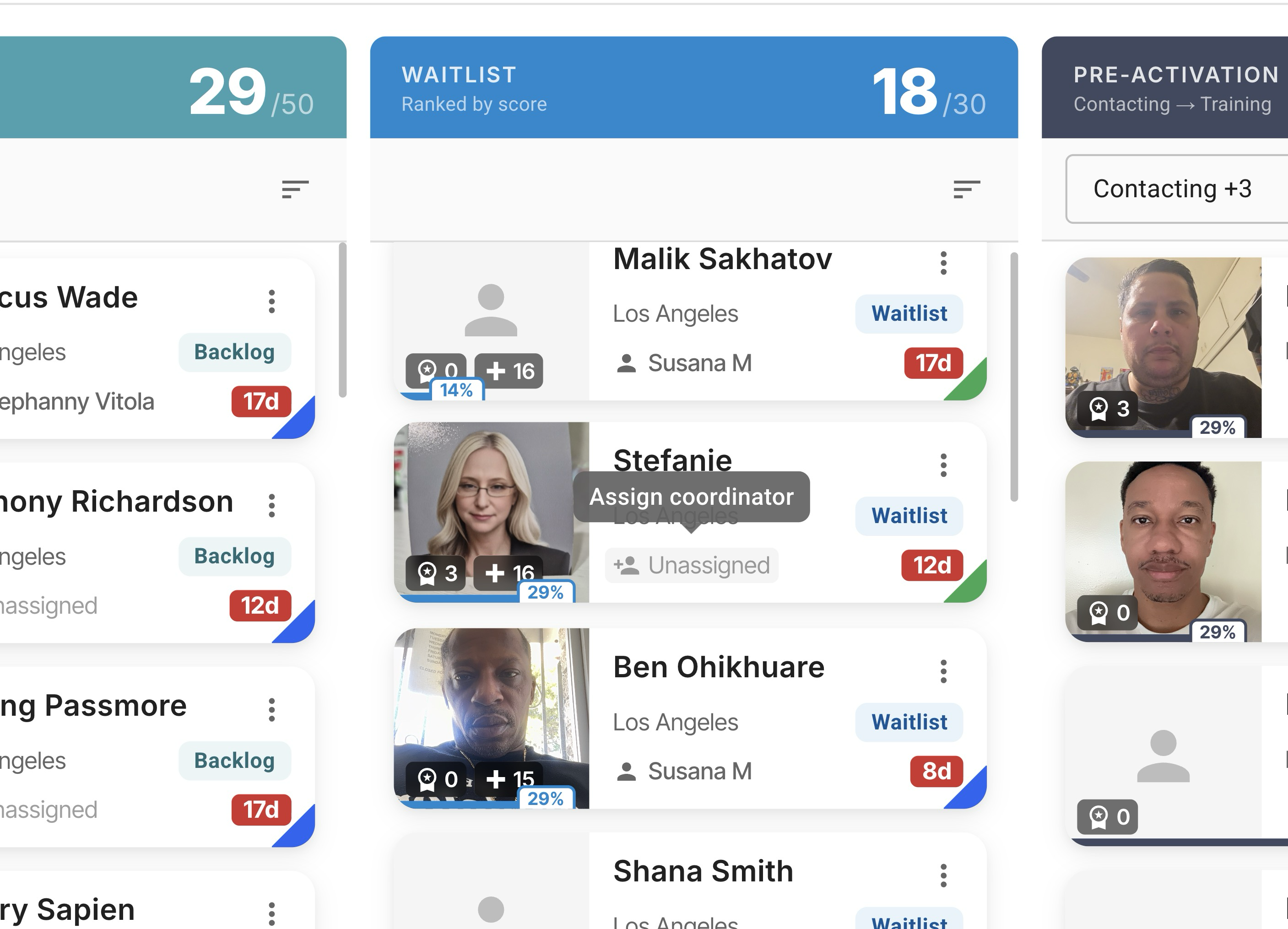
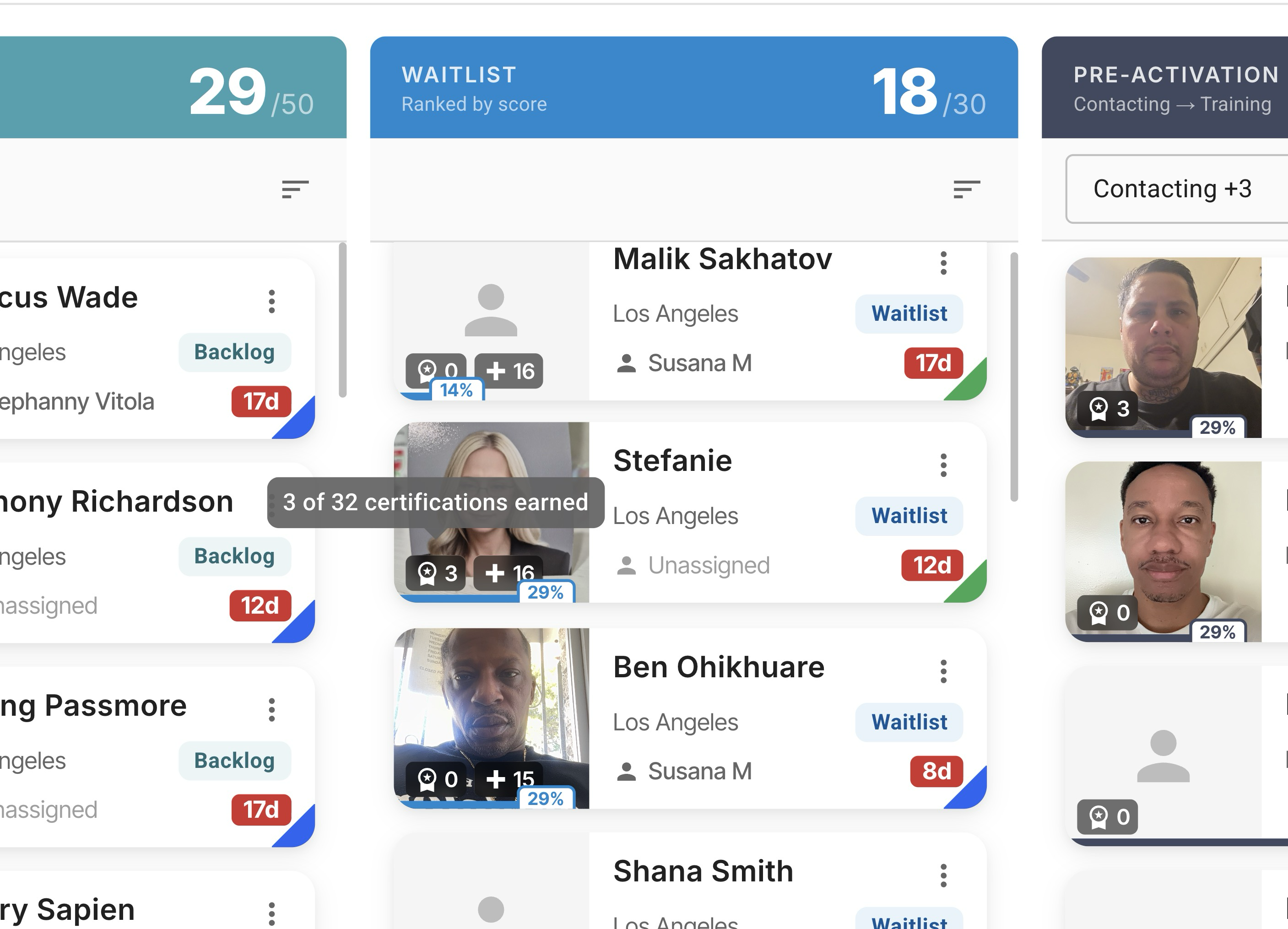
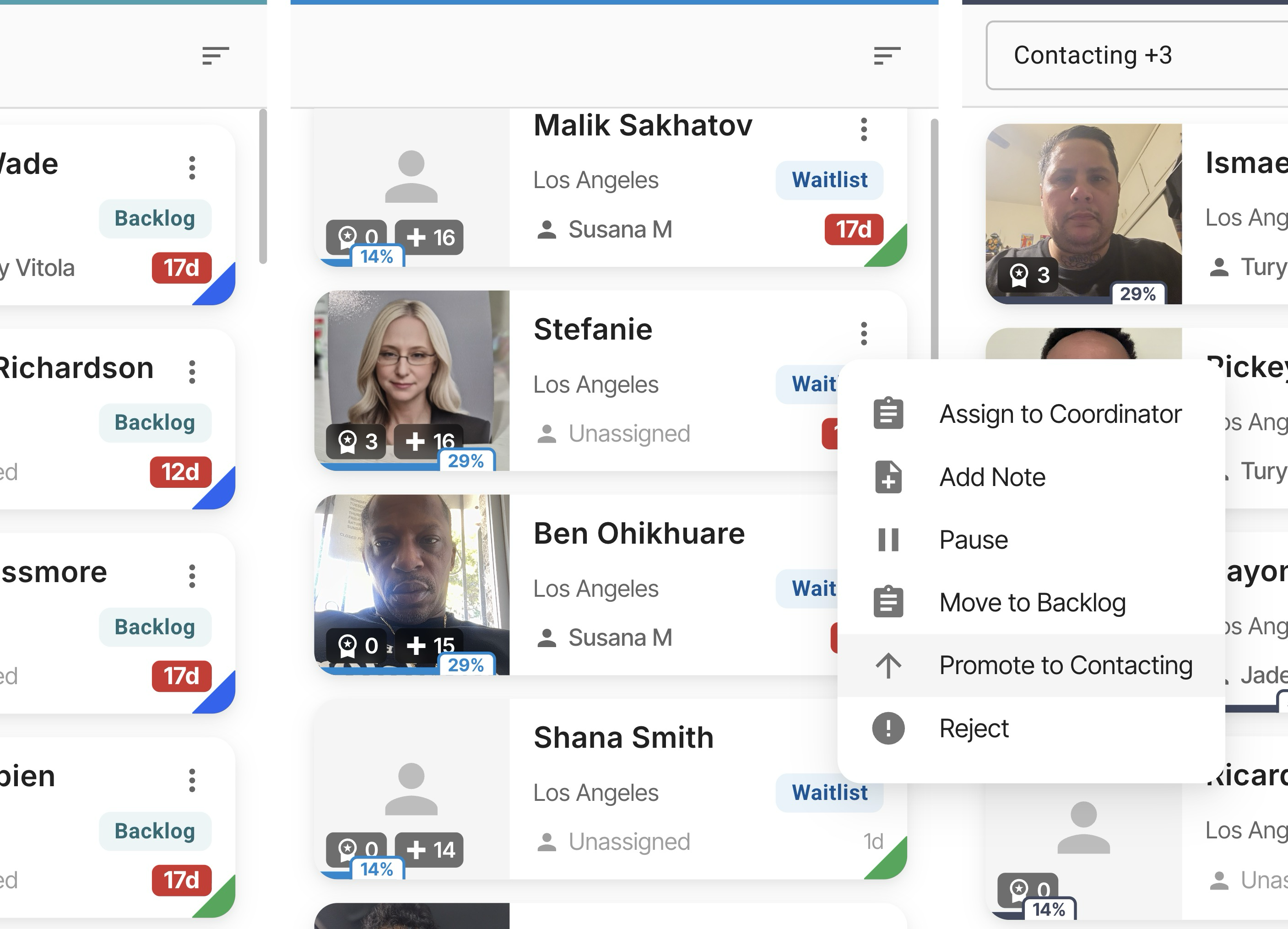
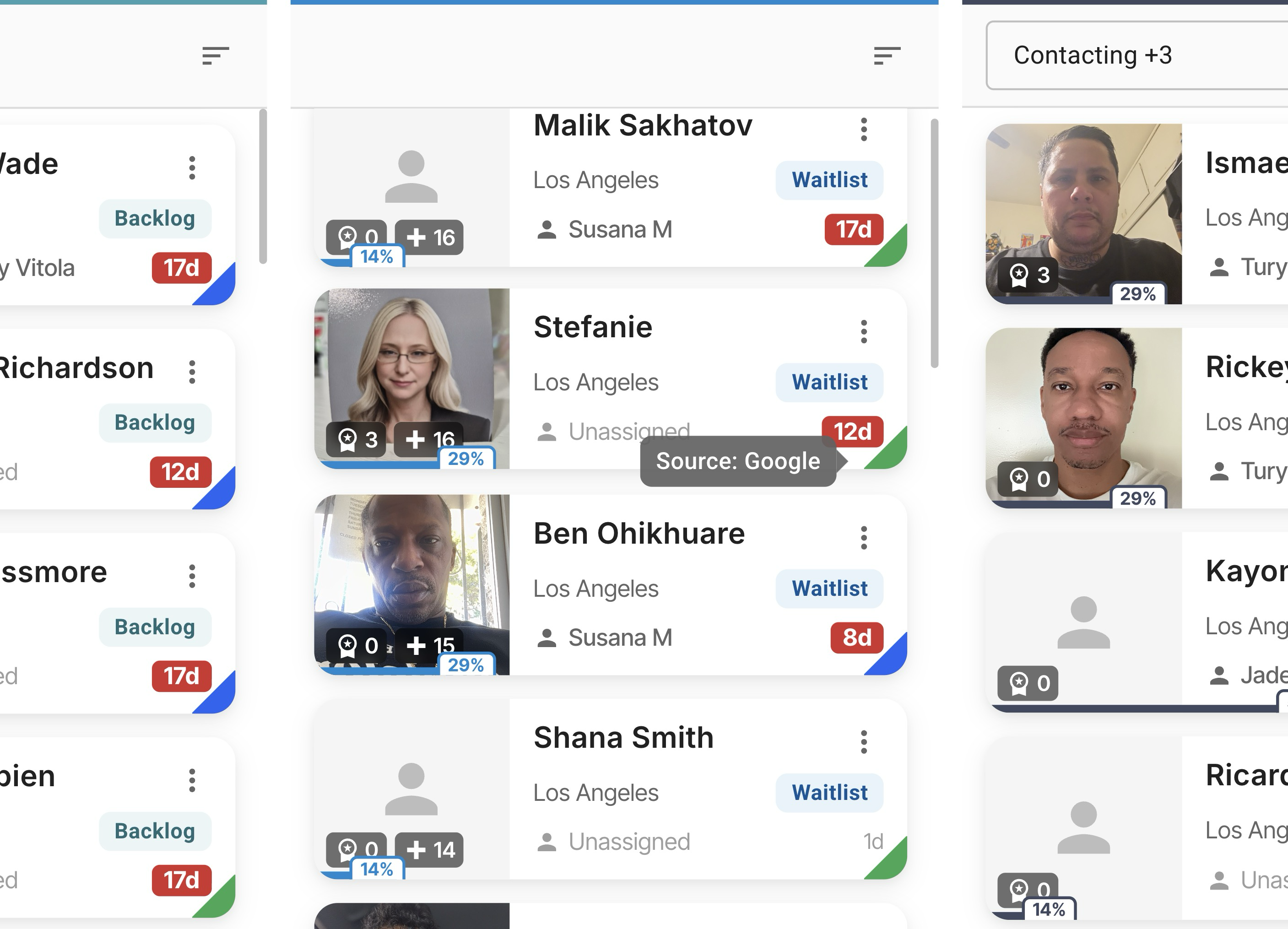
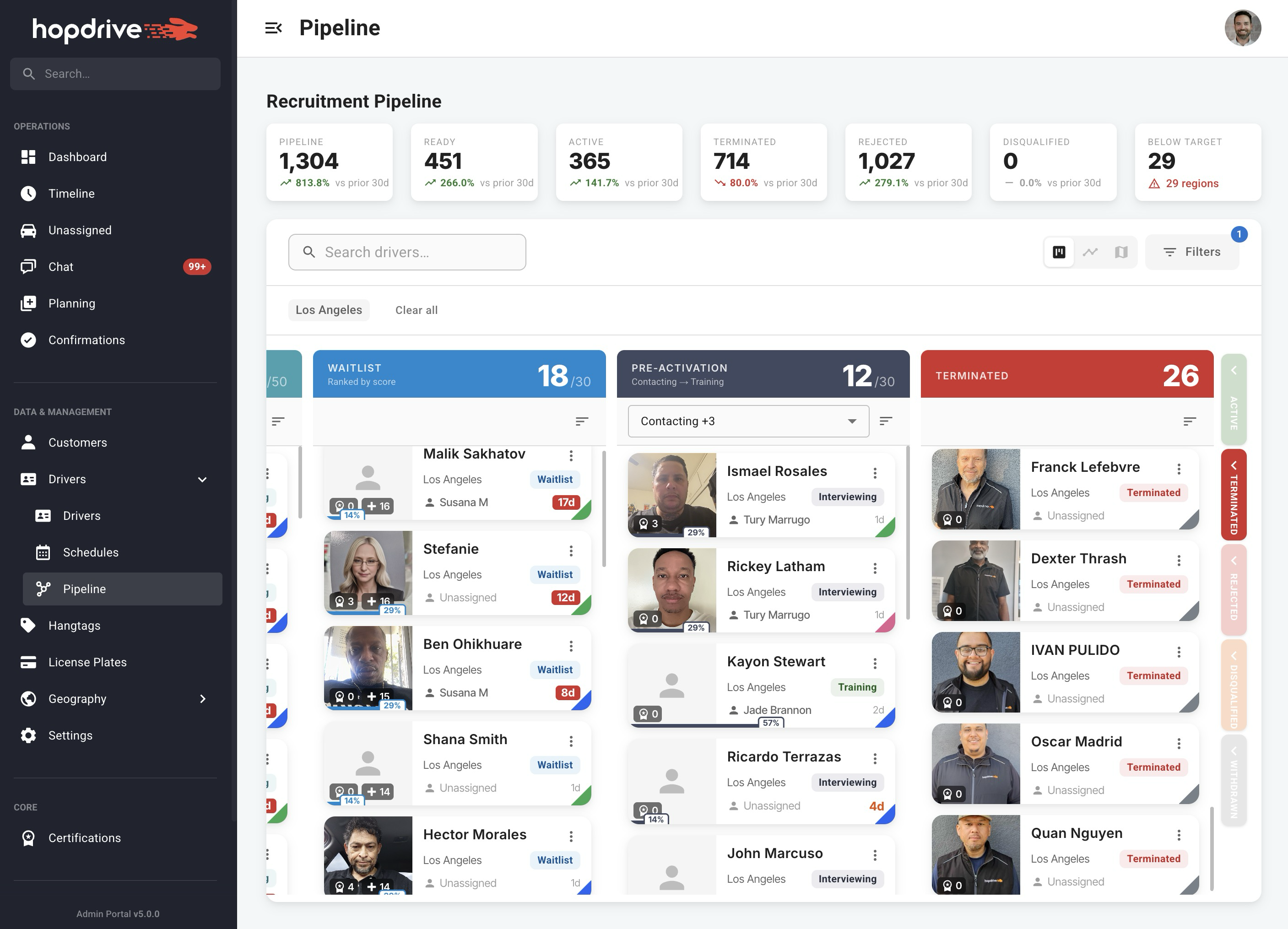
The driver pipeline has been redesigned for clearer visibility. Each driver card shows a photo, source (Indeed, Google, LinkedIn, Referral) with color-coded ribbons, certification count, and pipeline score. Wait time is highlighted so you can prioritize: red for 7+ days, orange for 3 to 7 days. Assign coordinators with a click, and see onboarding progress on each card. The region filter surfaces regions that need attention with metric bars showing backlog, waitlist, and active counts versus targets.

Event Logs
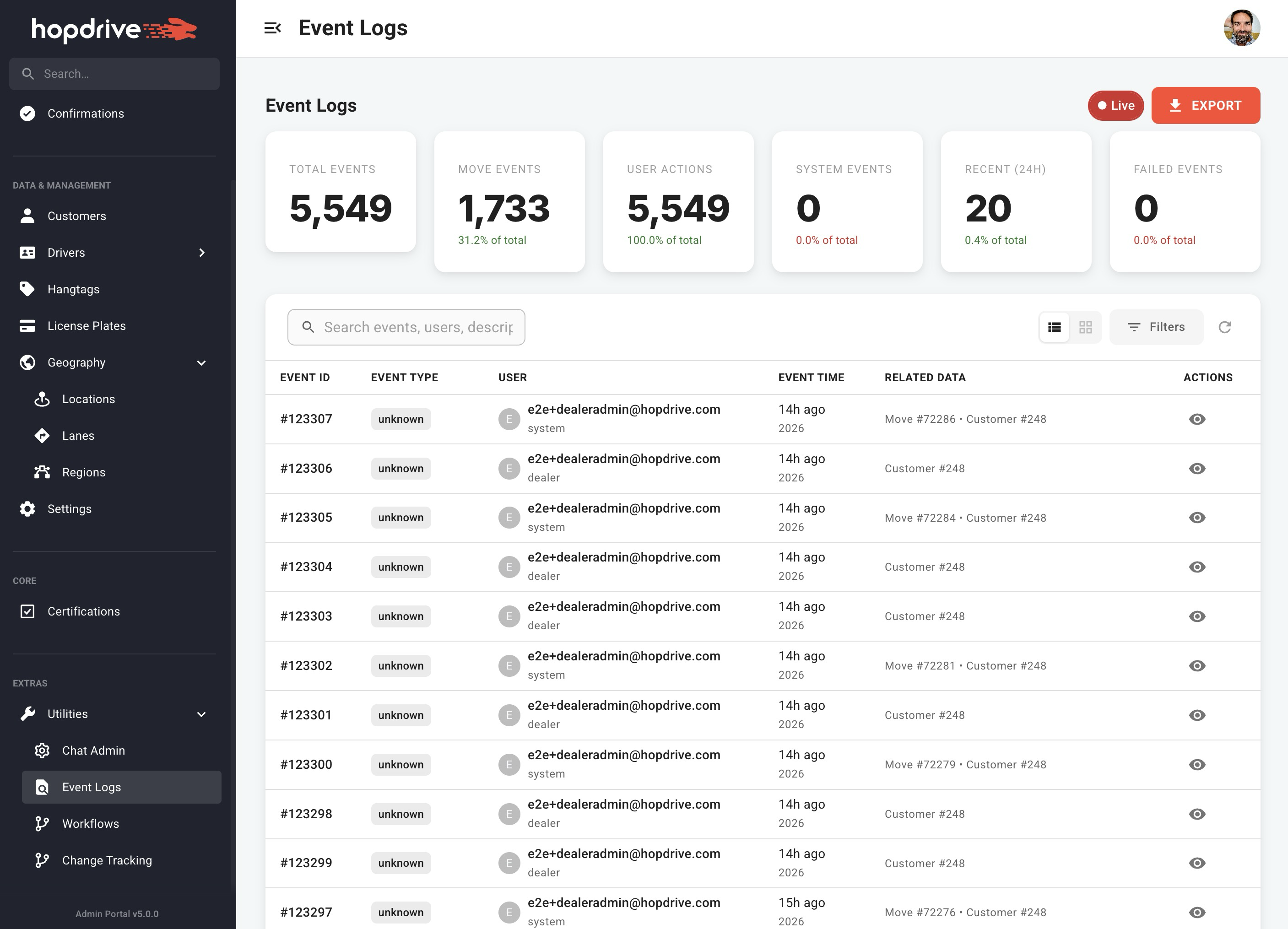
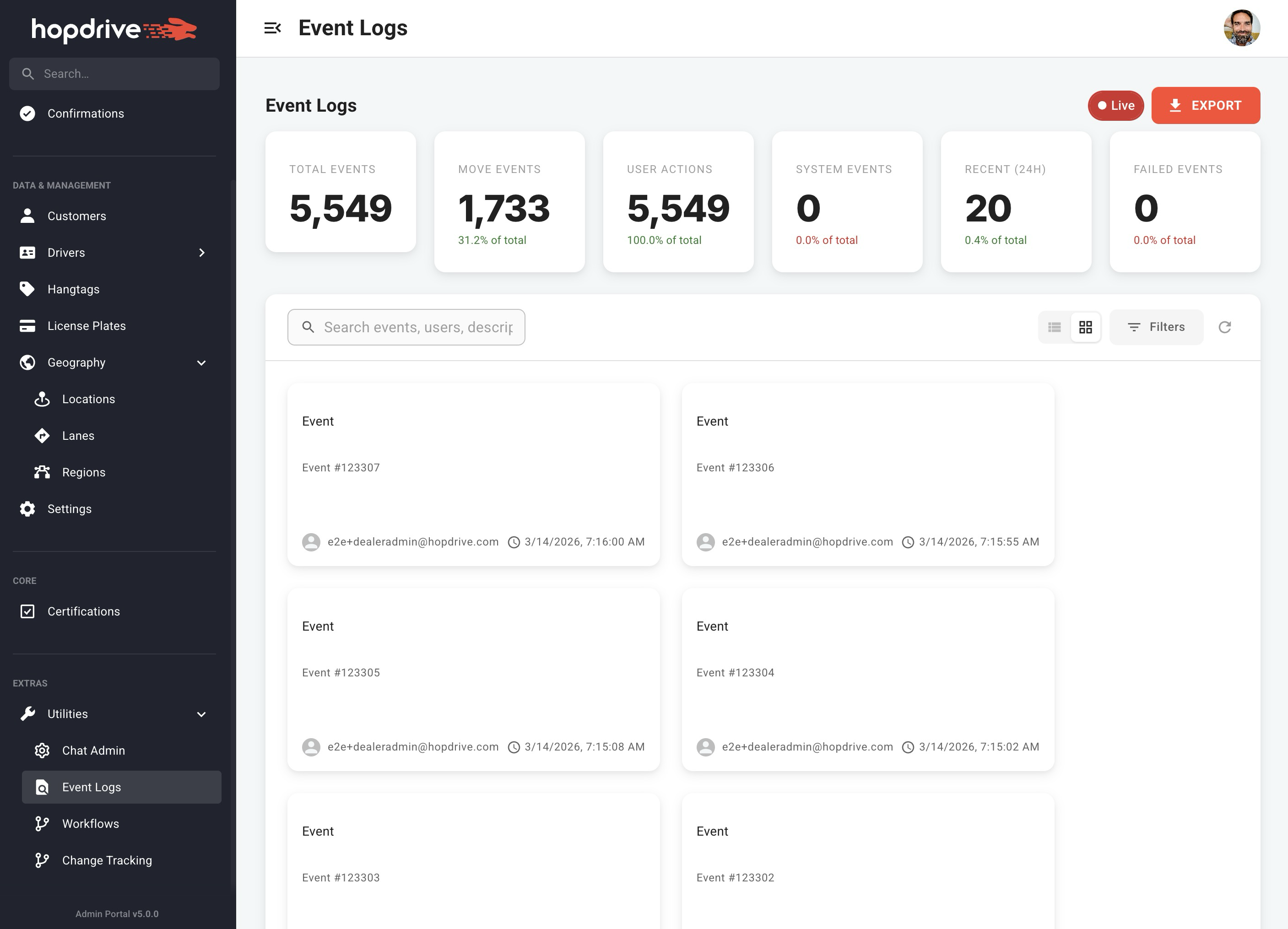
View event logs in Table or Grid format. Filter by event category, time period, event ID, move ID, customer, driver, and date range. Export data and see a live indicator when new events arrive.
Hang Tags
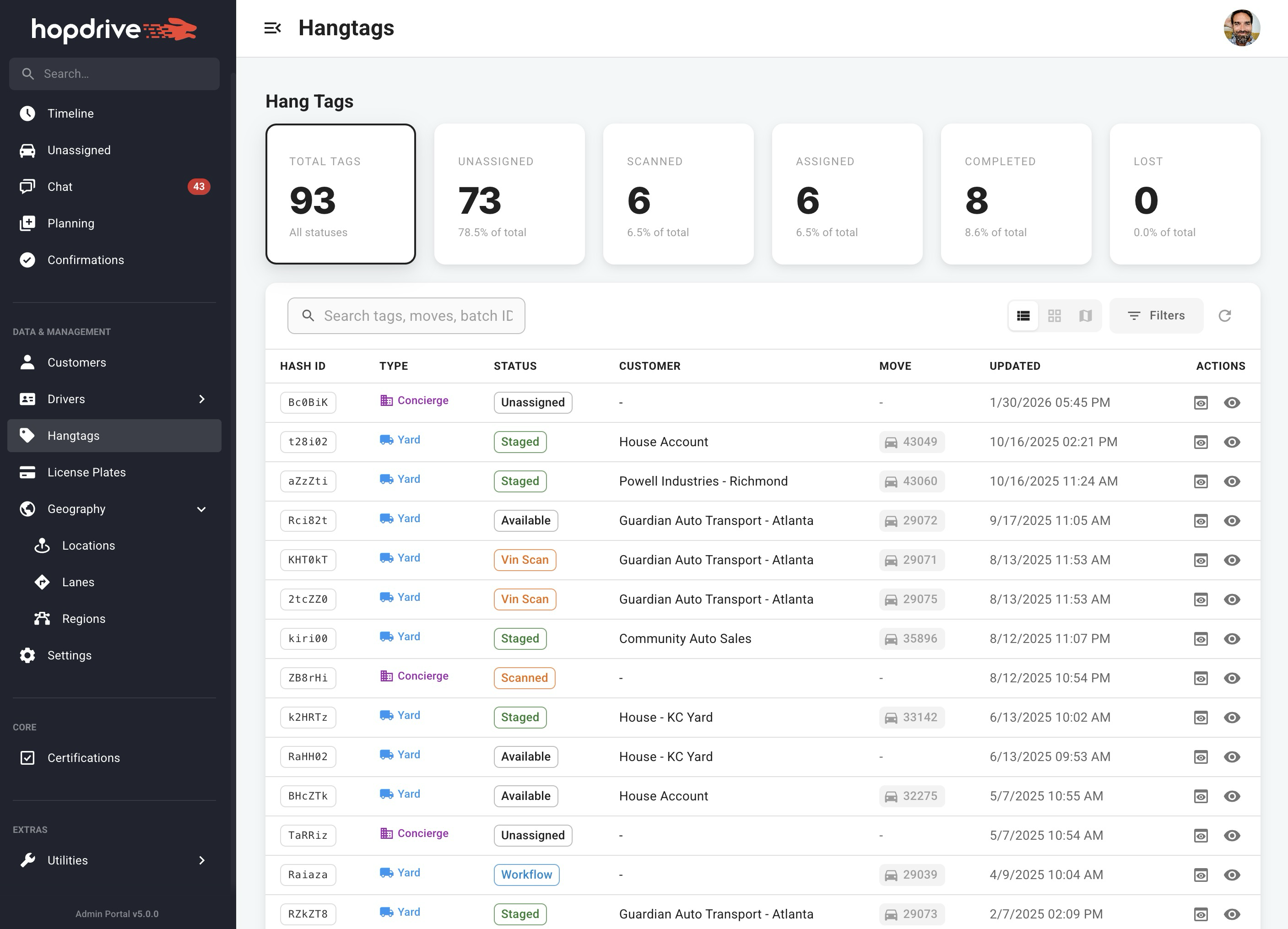
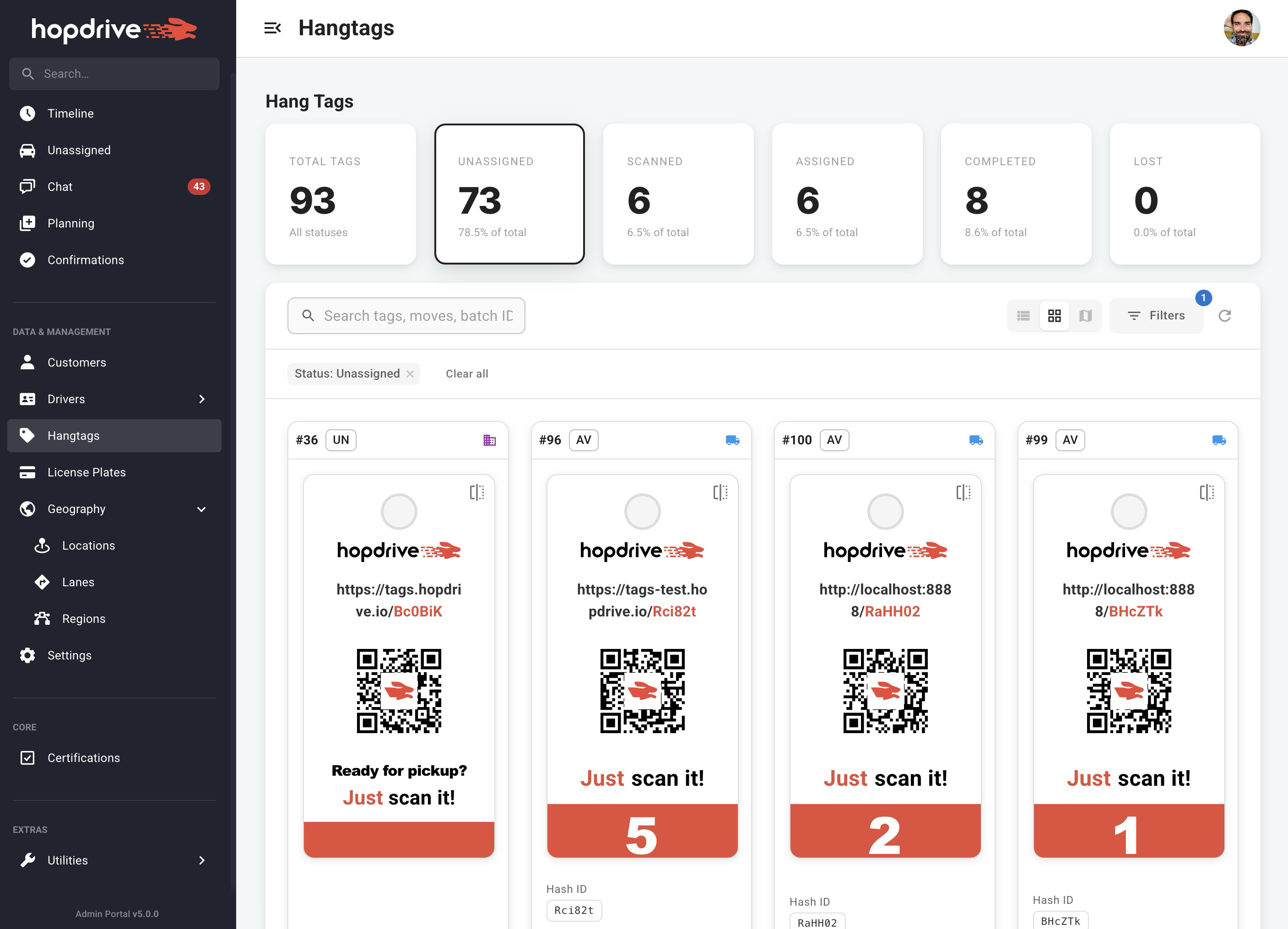
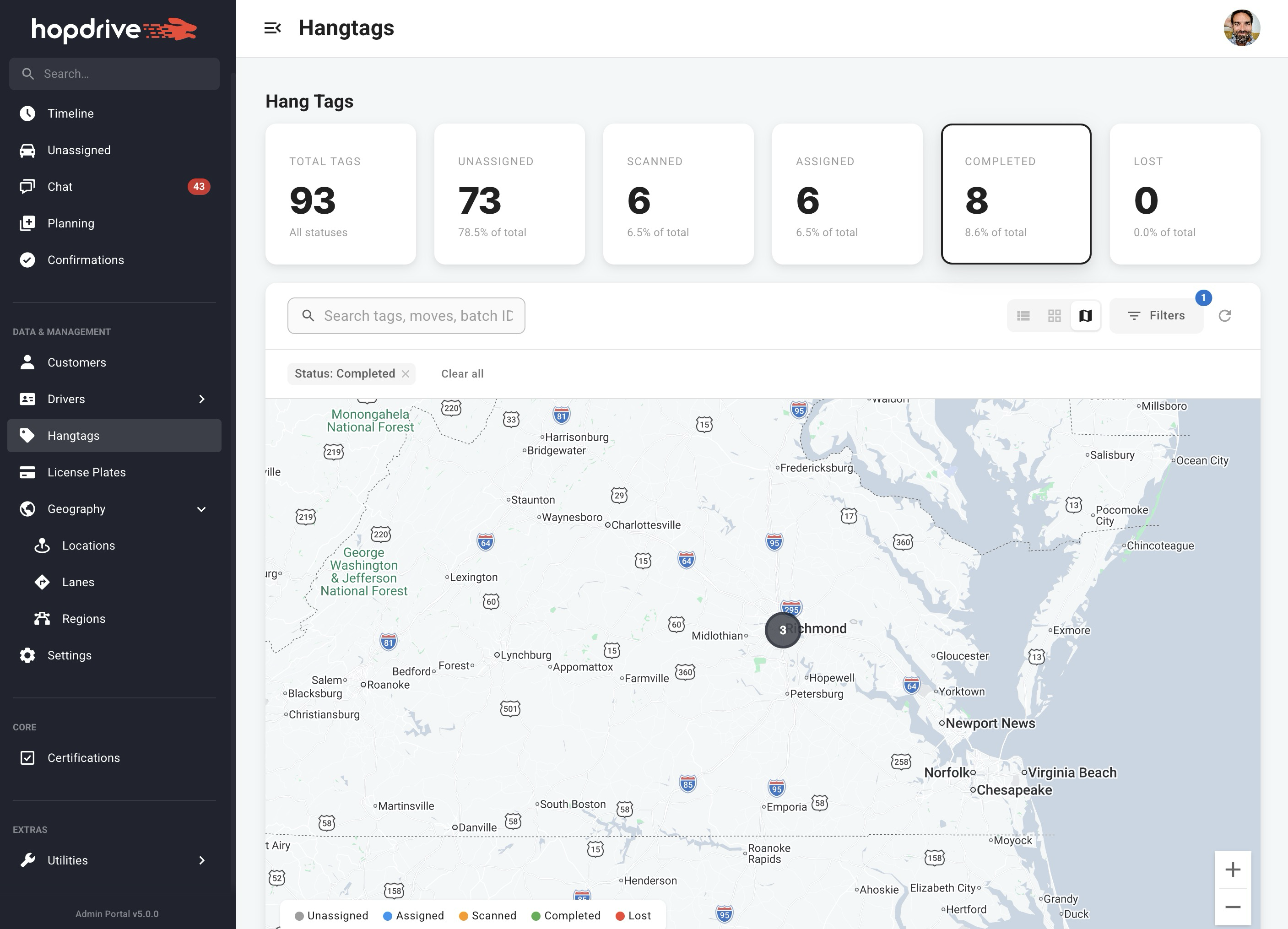
Manage hang tags in Table, Grid, or Map view. Filter by status, type (Concierge/Yard), and customer. Select multiple tags for bulk actions. New tags appear in real time.
Move Details
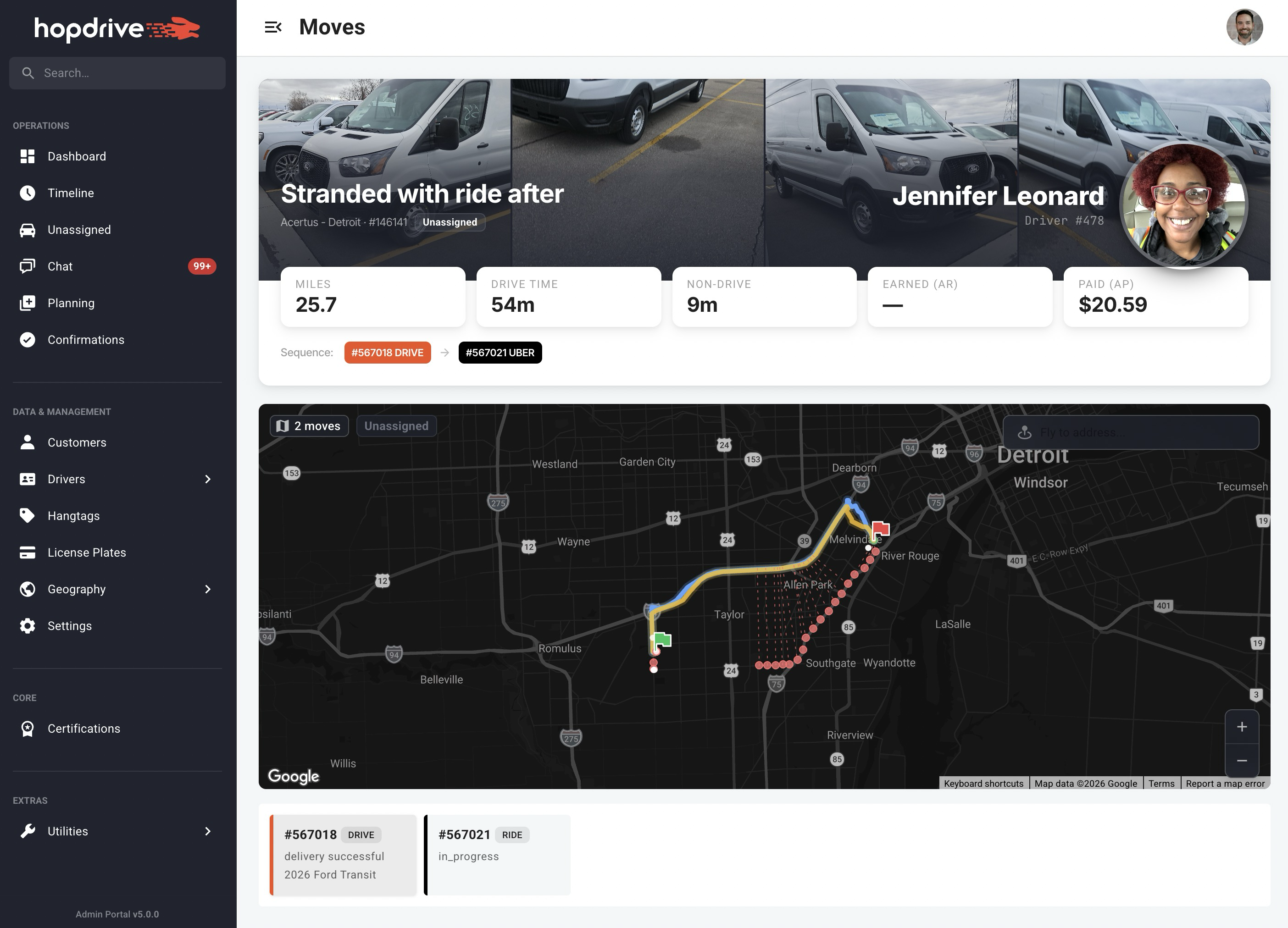
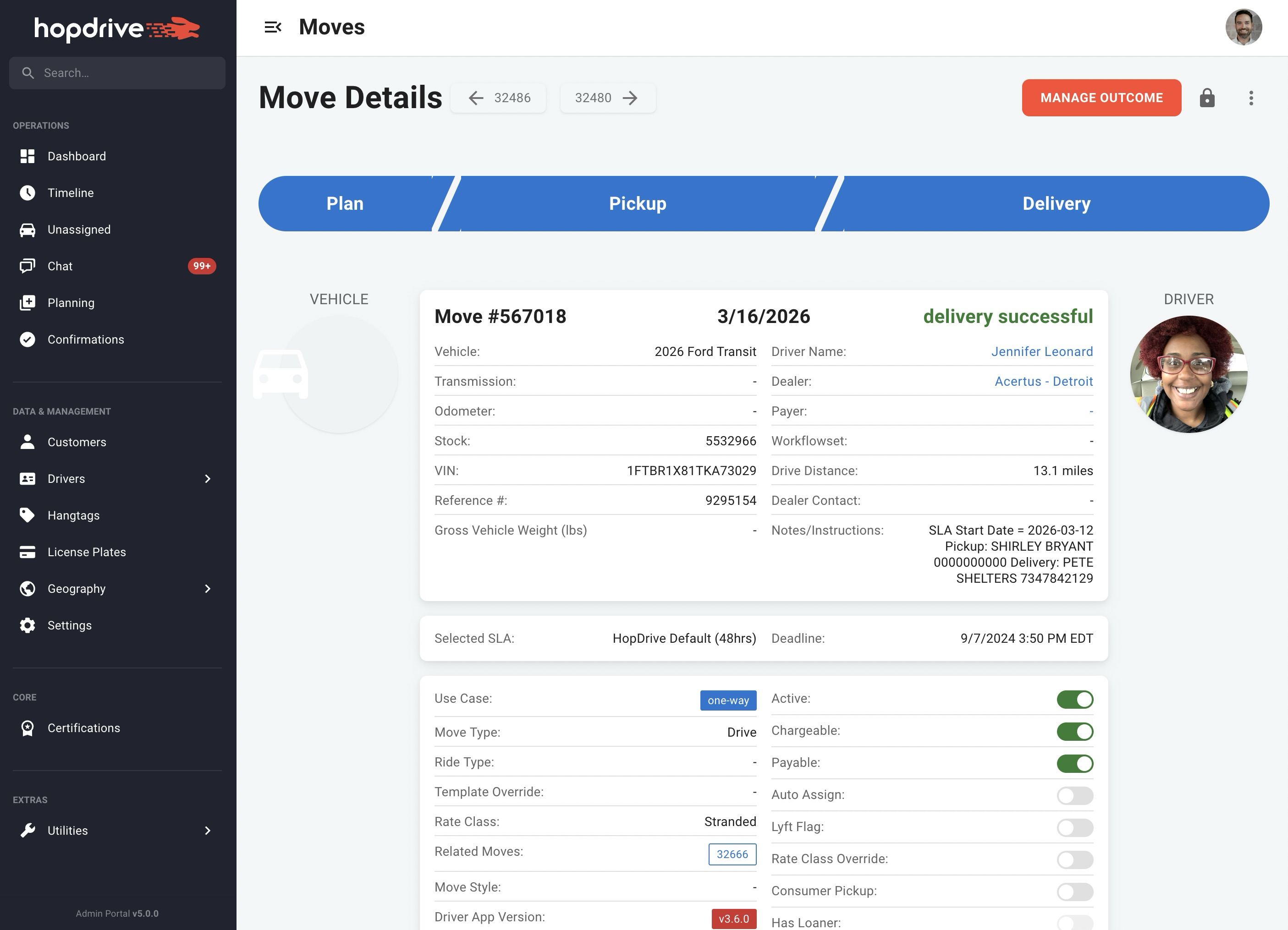
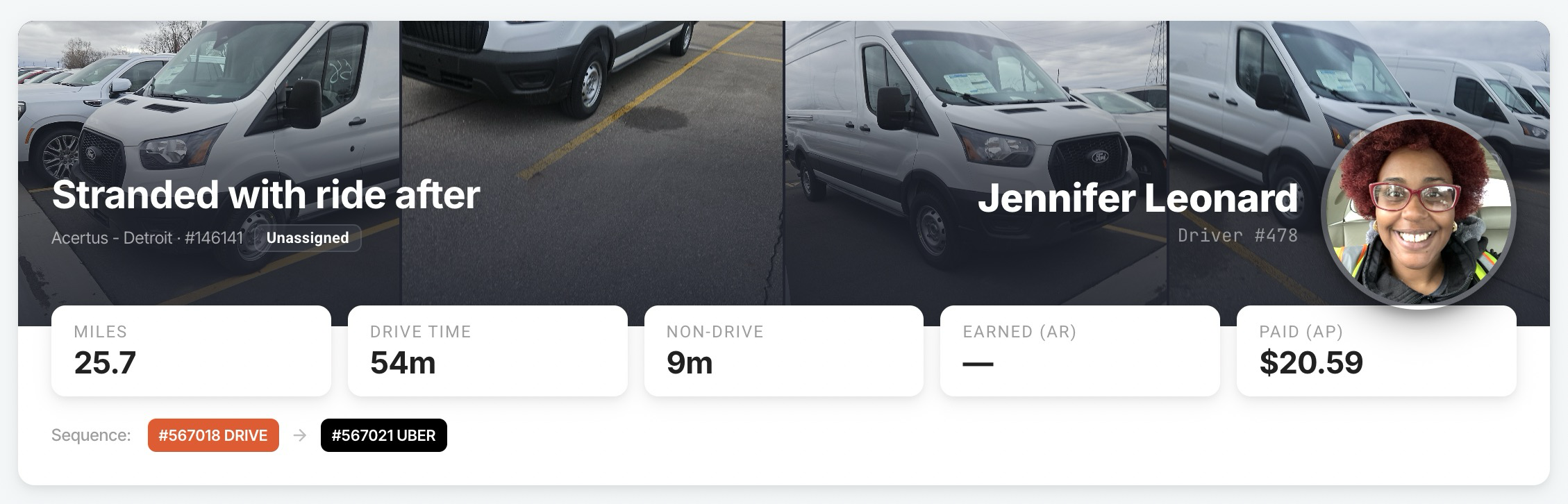
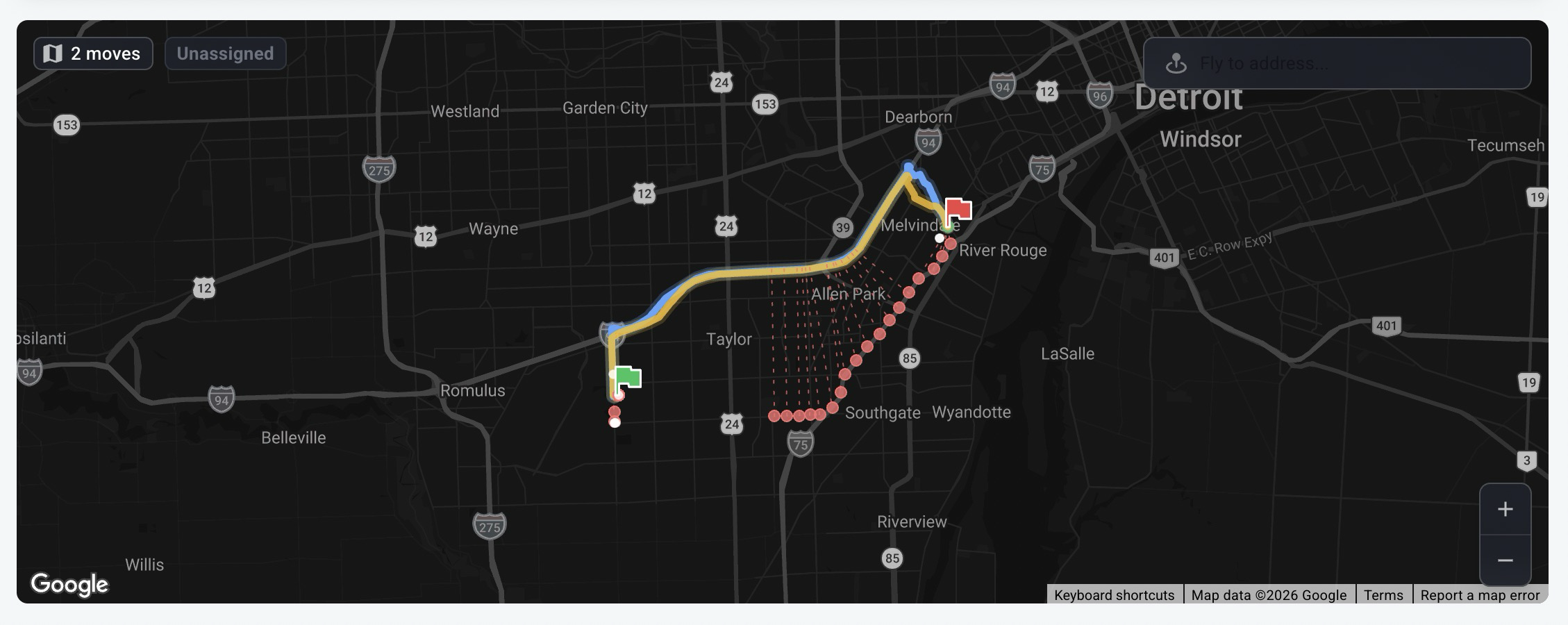
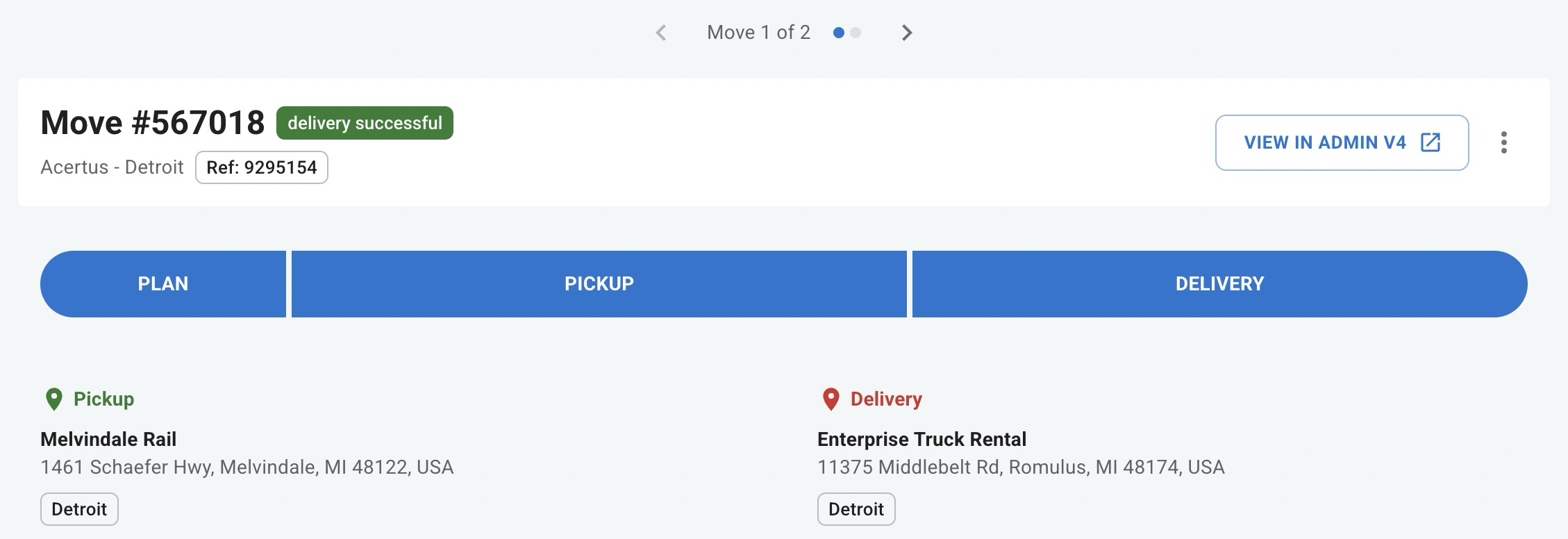
A new scenario-focused move details page shows the full picture: vehicle photos, driver info, key metrics (Miles, Drive Time, Earned AR, Paid AP), and move sequence. An interactive map displays all stops, routes, and driver locations. Switch between moves with tabs or Previous/Next buttons. A context menu offers actions like Manage Plan, Manage Times, Manage Status, Manage Hangtag, Settle Move, and more. Options are enabled or disabled based on the move's current state.
A legacy move details page is also available for users who prefer the previous layout.
Region Detail
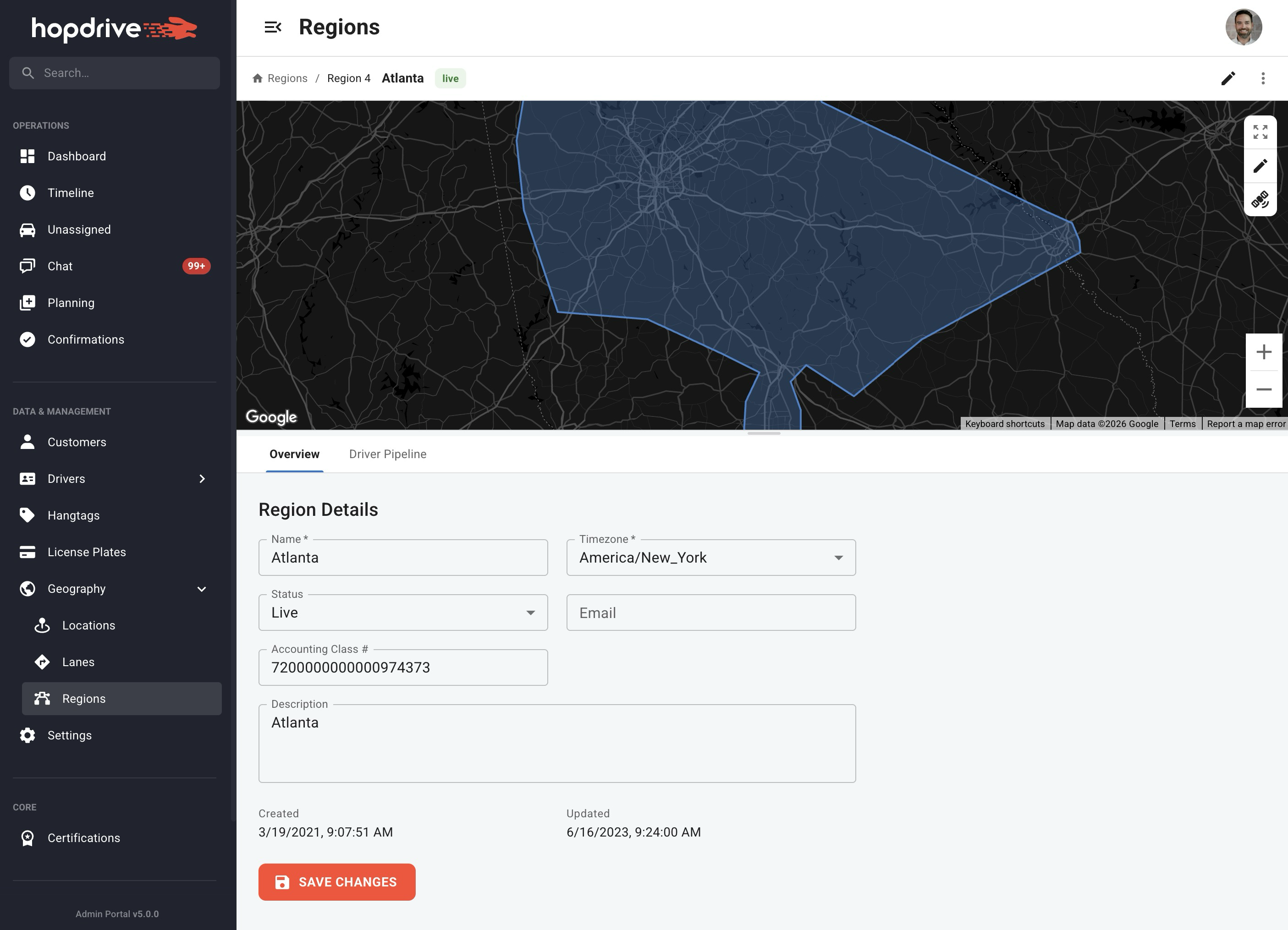
A new region detail page lets you view and edit regions on a map. See the geofence polygon, toggle satellite view, fit the map to bounds, and draw or edit geofences. Edit region details in the bottom panel and delete regions with a confirmation step.
Settings
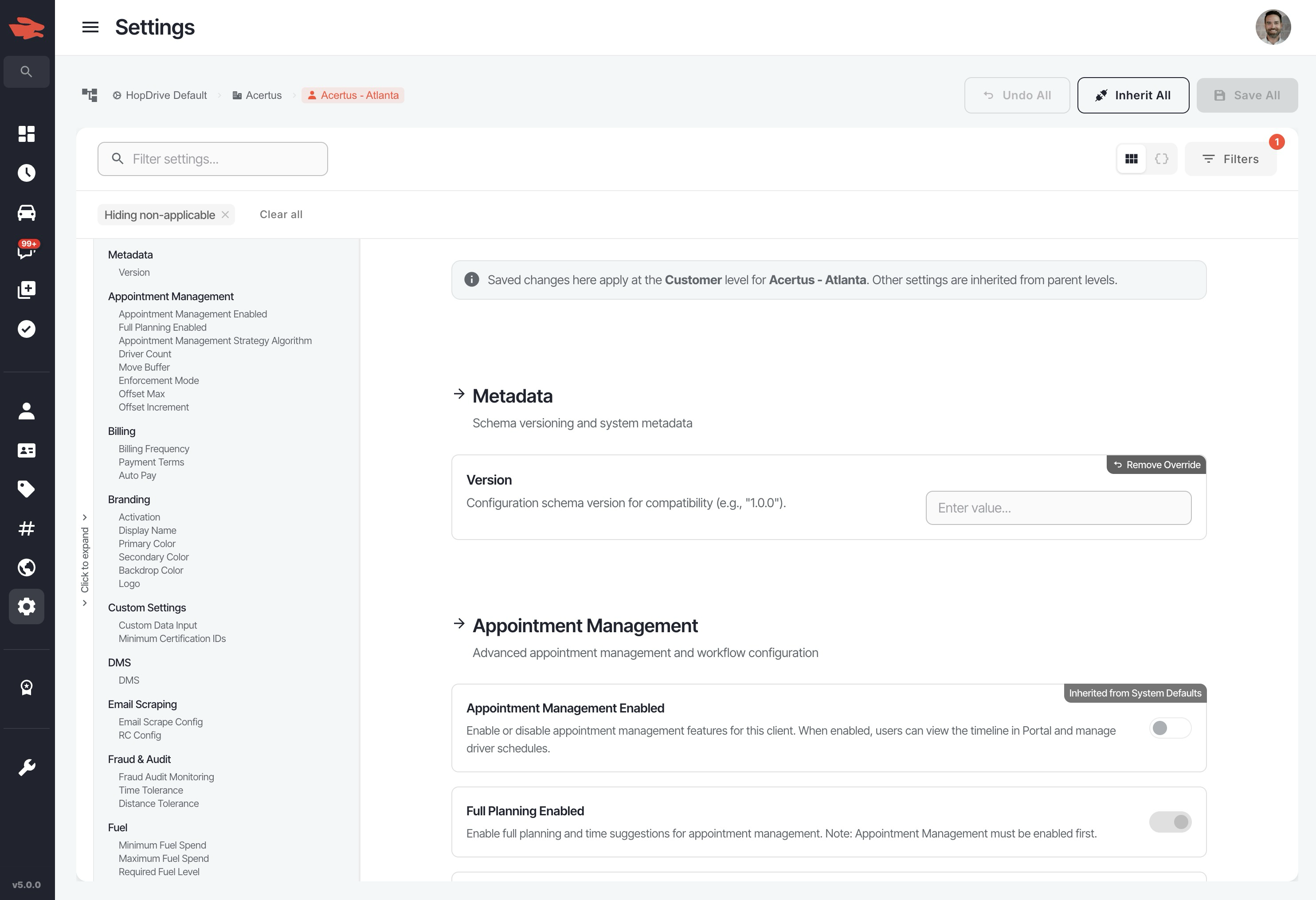
The Settings page has been refreshed with a cleaner layout that matches the rest of the admin.