
Admin 5 Maps Dashboard for Move and Driver Monitoring
Table of Contents:
- Admin 5 Maps Dashboard
- Follow Driver Mode
- Satellite View & Map Controls
- Advanced Filtering
Admin 5 Maps Dashboard
Demo Video:
A brand-new maps dashboard is now available in Admin 5 at Operations > Dashboard. It provides a real-time, map-centered view of all active moves and drivers across your regions — giving dispatchers and operations teams instant visibility into what's happening on the ground.
Key Features
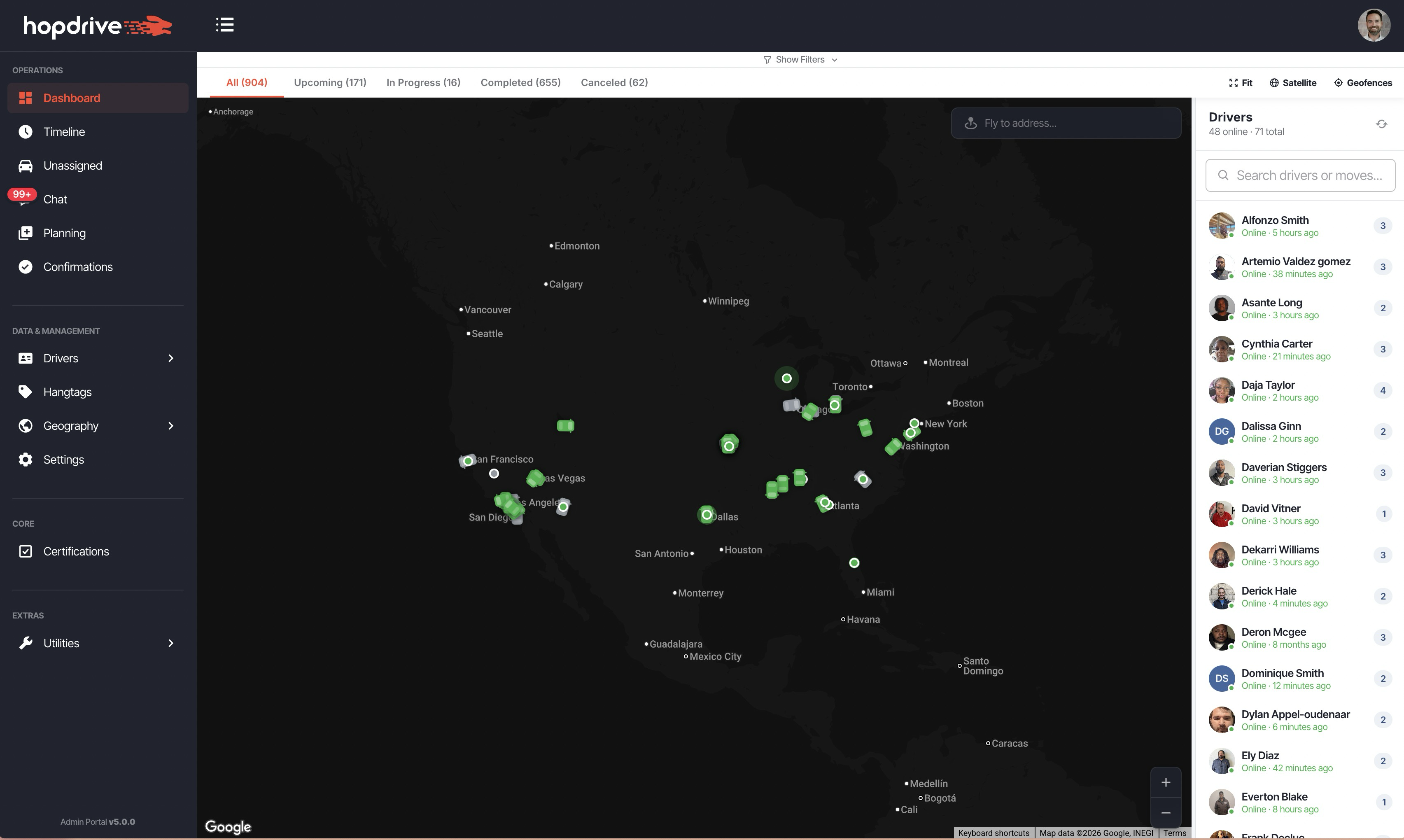
- Real-time driver markers on the map with online/offline status, GPS pings, and battery level
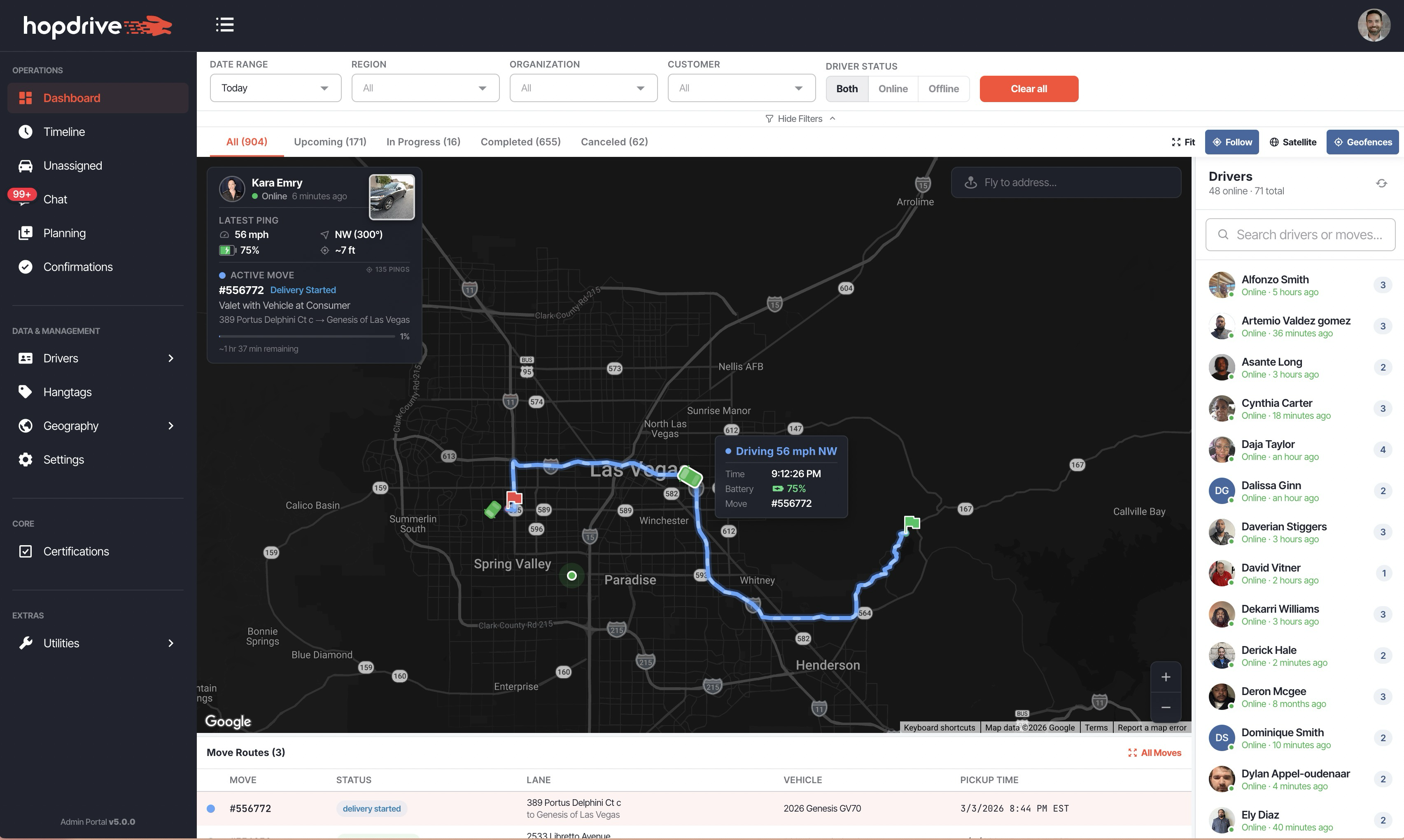
- Move route visualization with color-coded polylines for each active move
- Resizable driver sidebar on the right with search, online/offline counts, and move badges
- Resizable move legend table below the map with move ID, status, lane, vehicle, and pickup time
- Multi-layer camera logic that automatically fits the map to the relevant bounds as you navigate
- Pickup and delivery geofence overlays with a toggle to show/hide
- Address autocomplete fly-to for quickly navigating the map to any location
- Unified search across driver names, phone numbers, and move IDs from a single search box
Follow Driver Mode
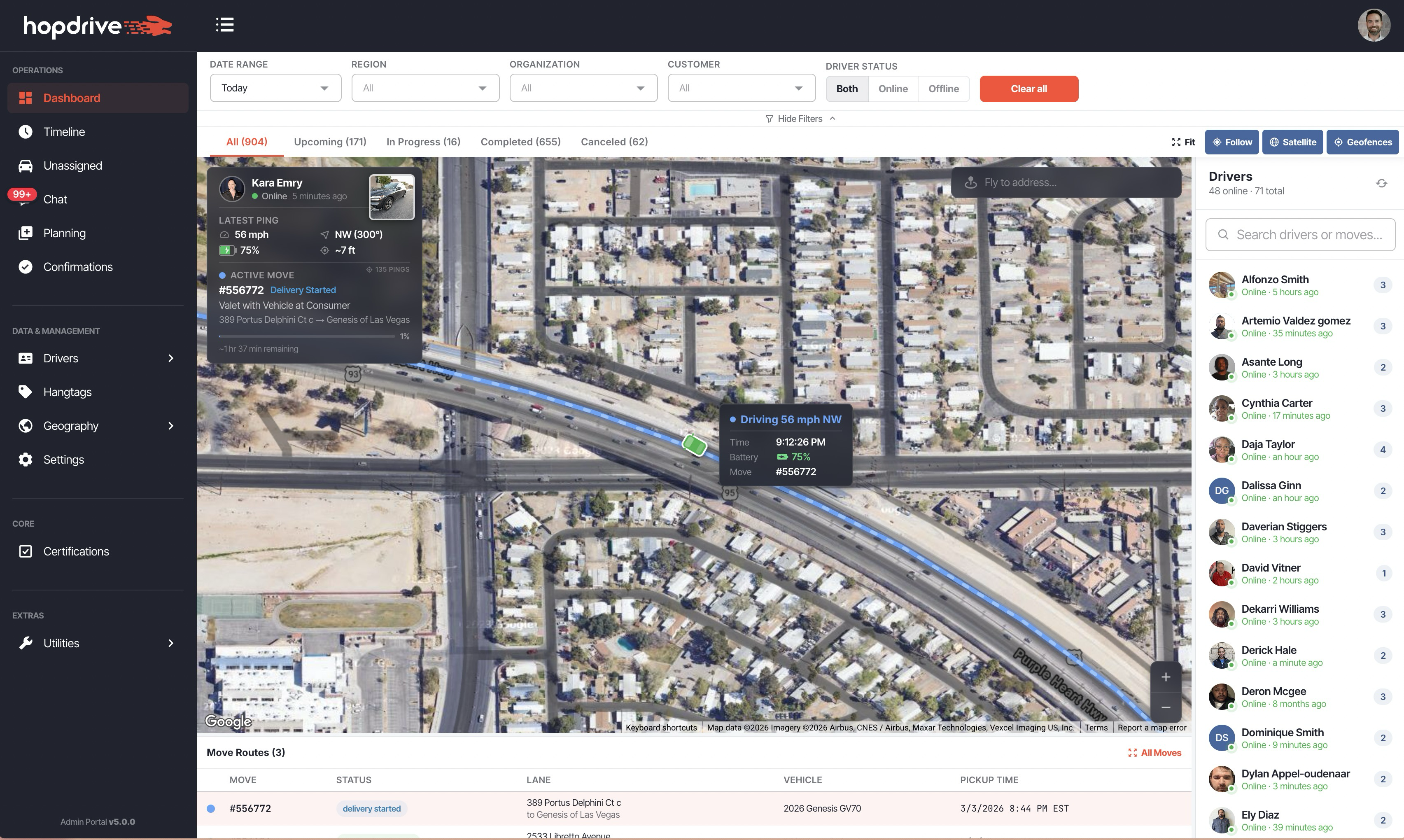
Select a driver and enable Follow to lock the map onto their live position. The map zooms to satellite level and continuously pans to track the driver as new GPS updates arrive.
How It Works
- Click a driver in the sidebar, then click the Follow button in the toolbar
- The map zooms to satellite level and centers on the driver's position
- A telemetry panel appears next to the driver marker showing:
- Driving status (speed and compass heading, or "Stopped")
- Last ping time
- Battery level with color-coded indicator
- Active move ID
- Dead-reckoned interpolation keeps the driver marker moving smoothly between GPS polls
- Road-constrained tracking snaps the marker to the route polyline so it stays on the road
- Switching to a different driver while Follow is active automatically re-centers and follows the new driver
Satellite View & Map Controls
The toolbar above the map provides quick-access controls for customizing your view:
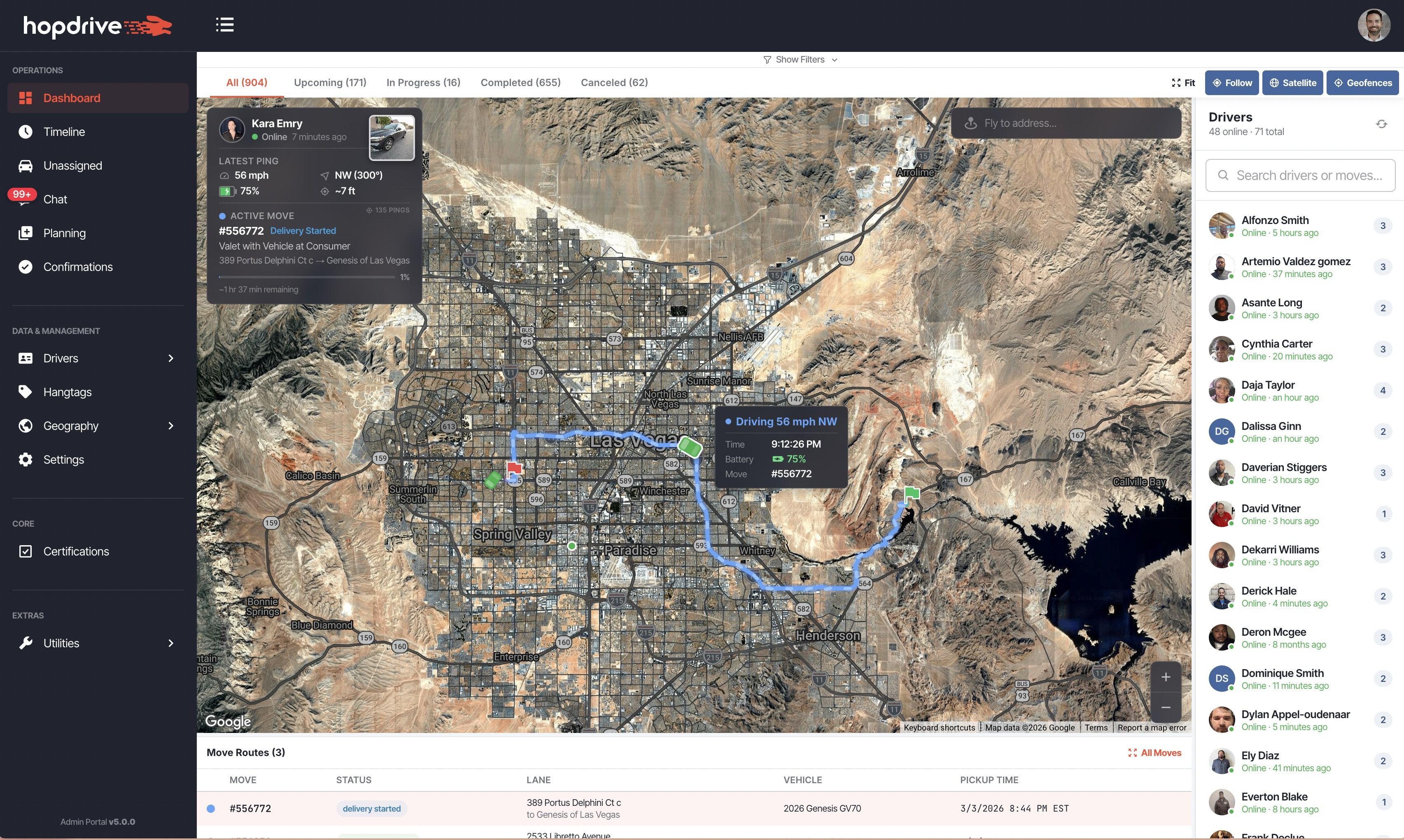
- Fit — Zoom to fit all visible items (moves, drivers, routes) in the current view
- Follow — Lock the map to the selected driver's live GPS position
- Satellite — Toggle between satellite imagery and the standard road map
- Geofences — Show or hide pickup and delivery geofence circles on the map
The satellite view also activates automatically when you zoom in to street level, and the toggle stays in sync.
Advanced Filtering
A collapsible filter panel lets you narrow down exactly which moves and drivers appear on the dashboard.
Available Filters
- Date Range — Presets (Today, Tomorrow, This Week, etc.) or a custom date range
- Region — Filter by one or more regions
- Organization — Filter by organization
- Customer — Filter by customer
- Driver Status — Show all drivers, online only, or offline only
Status Tabs
Below the filter bar, status tabs show move counts by category — All, Upcoming, In Progress, Completed, and Canceled — so you can quickly focus on the moves that matter most.
Things to Know
- The dashboard is permission-gated behind the Dispatching feature flag
- Only drive-type moves are shown (ride moves are excluded)
- Driver markers show as a car icon when actively driving with a known heading, or a dot when stopped or without heading data
- All filters and panel sizes persist across sessions